
Here is how to get started
- Firstly, Create groups.
- Secondly, Create activities and invite groups.
- Then Create billing collections and invite groups.
- Clear communication and information
- Finally, get members into Wiandi.
See here for a detailed guide
I am text block. Click edit button to change this text. Lorem ipsum dolor sit amet, consectetur adipiscing elit. Ut elit tellus, luctus nec ullamcorper mattis, pulvinar dapibus leo.
Frequently asked questions
a
Language in app and on web
Wiandi has been translated into different languages on the web and in the app such as:
- English
- German
- Danish
However, you can contact us if you would like a specific language inserted.
a
Insert link to the club’s or association’s document in Wiandi
You can insert a link to document in your file sharing system such as G-drive, OneDrive and DropBox.
Link sharing makes it easy for members to access the association’s documents . As an administrator, you can do an activity description, personal chat, group chat, messages. As well as in the club’s or association’s description.
a
Team setting for matches
If you want to put the team to a match, you must individually invite the players in your gross squad. Then, you can individually remove the players who do not have to be on the team card. When a player is removed from the activity, they receive a notification that they have been removed from the activity. Also, the the activity will no longer to be found in the player’s activity wheel.
a
How to utilise groups?
As an administrator and group leader, you can create boards, committees and teams. However, when you create an activity, it is possible to invite one or more groups to that activity. Hence, if a member is added to the group, he or she is automatically invited to the group’s activities.
a
Sharing files and documents
f you want to share the association’s files from G-drive , Dropbox or OneDrive , simply insert a link in the Description or Comment track during the activity. Of course, you can also insert your links in the chat.
See these blog posts for document management and structuring the association’s documents:
https://wiandi.co.uk/4-pieces-of-advice-for-handling-documents/
a
Deadline for responses and reminders in an activity
Invitees receive a reminder two days before a deadline in an activity.
But, if the deadline date is exceeded, the invitee can no longer register for the activity. A notification will be sent to the guest.
However, as an activity manager, you can always change the deadline date in an activity. This will allow the guest to sign up again.
For repeated activities, the deadline date is repeated based on the individual repeat activities. For example, a deadline date can be set to Tuesday at 2pm. So, on this day of the week and time a repeat reminder is issued for the next activity.
As activity manager, you can always edit the individual activity. This can put the response deadline in a repeat activity.
a
How do I set the maximum number of participants in an activity ( booking)?
When you create an activity, you can specify the maximum number of participants. As well as sets a limit on the number of participants in the activity. This allows you to create an activity that members can book on (booking).
See here how to create a weekly recurring activity with a maximum number of participants that members must pay to participate in (payment booking).
a
Why are there different roles?
There are three types of roles in Wiandi that have associated different rights:
1) Firstly, as an Administrator , you can log into the app and on the web platform assign and remove roles. As well as create, edit and remove all activities in your association.
2) Secondly, as a Group Leader , you can create, edit and remove all activities in the group for which you are the group leader in the app and on the web platform.
3) Also, as a Member , you can answer whether you participate or not, take on tasks and chat with the administrator, group leader and members.
a
How do I apply for membership of an association on behalf of my child?
Press into the center of the association’s activity wheel.
Then press Request, after which you can request membership of the association on behalf of your child.
a
How do I delete a chat
Chats with people who have not been active for 30 days will be removed from your chat history. They are thus not deleted, allowing you to always access old chats by re-creating the chat with the person.
Group chats are not removed, but are deleted when you delete the group.
a
How do I turn on/off notifications from a chat?
To turn notifications on or off in instant messaging, do the following:
- Tap “chat” at the bottom of the screen.
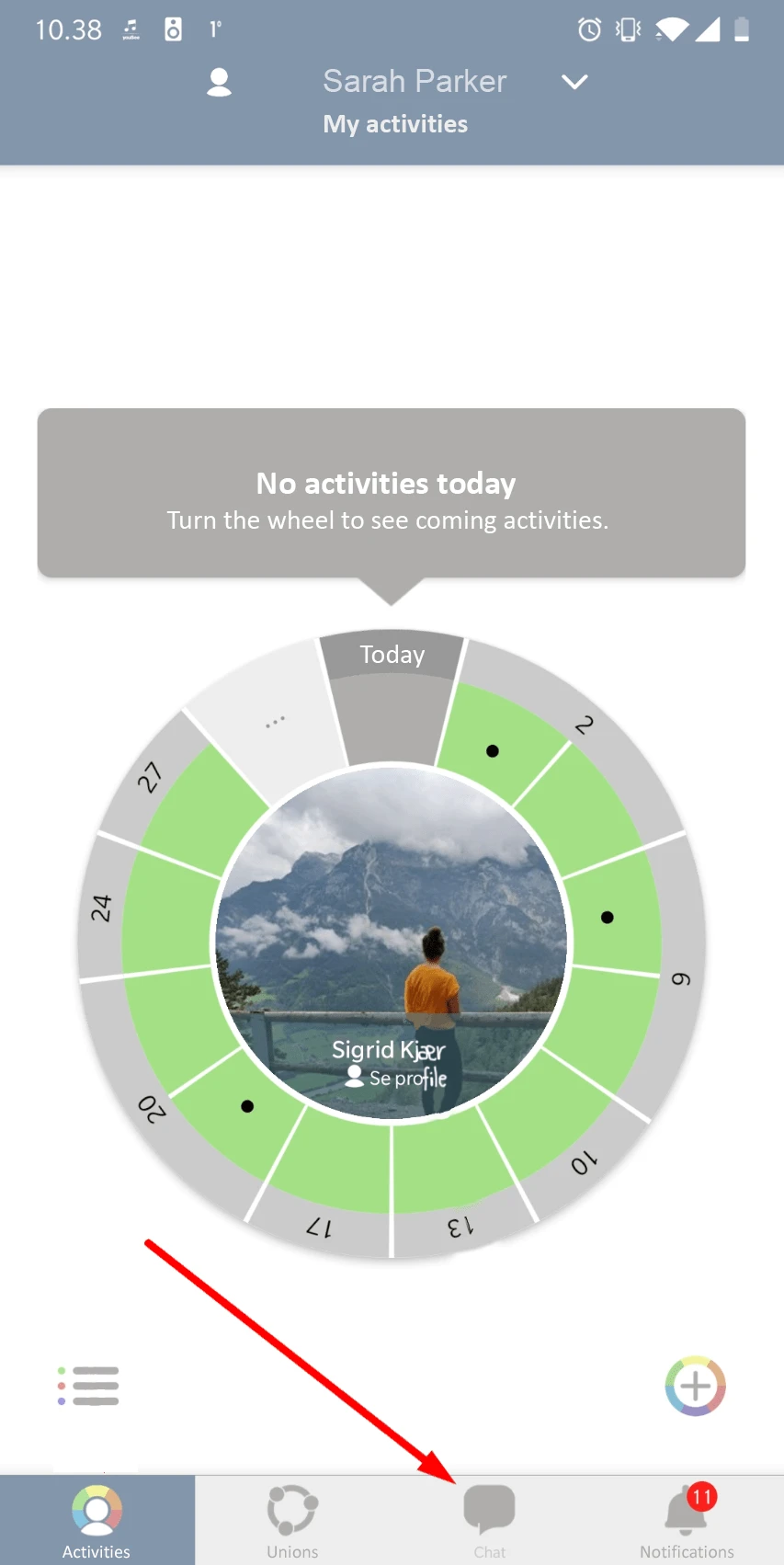
- Then press the “chat” you want notifications from.
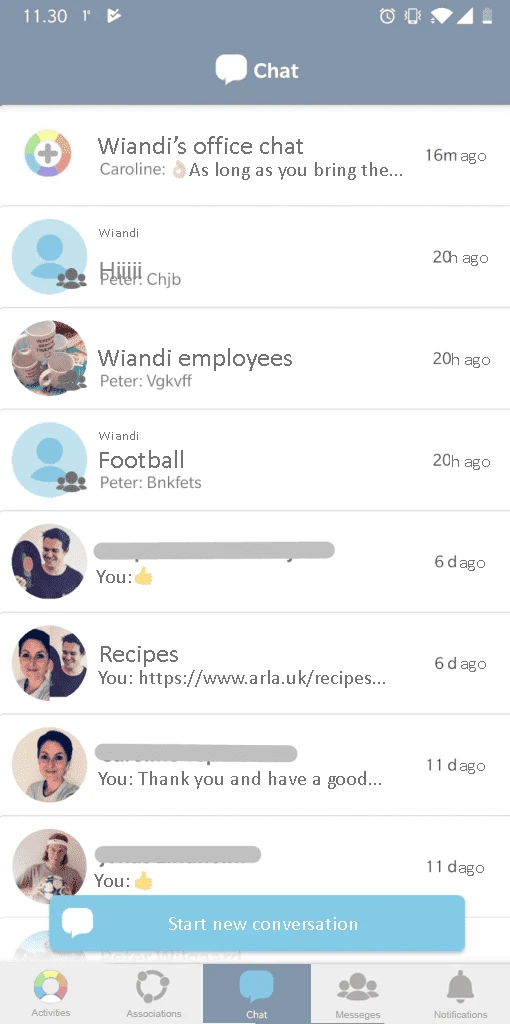
- Once inside the chat, click on the clock in the top right corner.
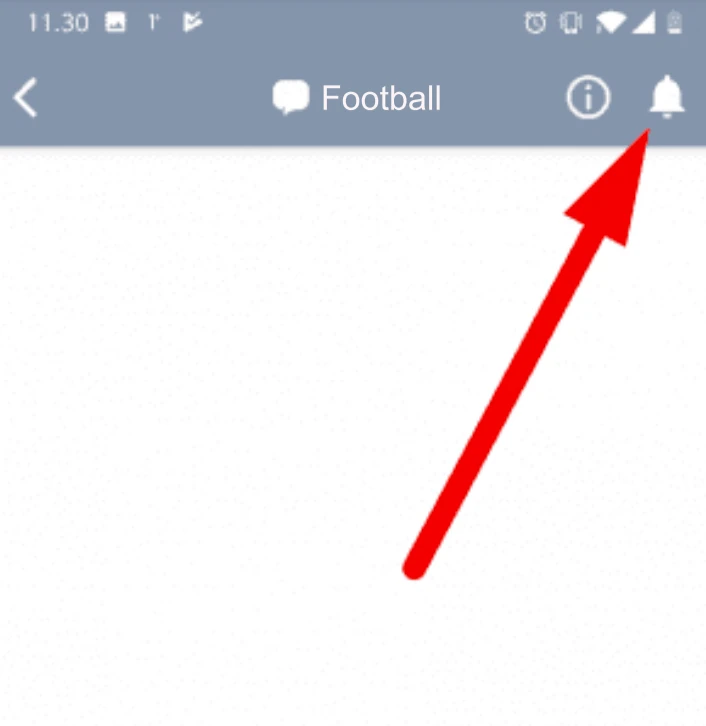
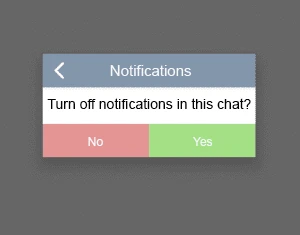
- Now a field pops up “turn off notifications in this chat” after which you press yes or no.
a
Use personal chat to discuss themes
The board typically uses the group chat for board talk. However, the board can have a personal chat running to discuss various topics.
In the person chat, you can continuously add and remove people as well as change the theme by changing the title of the chat, which is displayed in the chat overview. For example. “Planning a trip” or “Gift for Rita”.
You thus create chat, invite people and edit the title of your chat.
a
How does chat work?
The chat is straightforward:
Personal chat : You can create a chat or chat individually with all members of yours or your child’s association.
Group chat : Also, you can create chat and chat with the group of which you or your child is a member.
NB! New members of a group are automatically added to the group chat. Likewise, they are automatically removed from the group chat if they are removed from a group.
NB! Even if you are an Administrator, you can only create or chat with the groups of which you are a part.
a
Email already in use
Firstly, you have tried to register in the app and see the message “Email already in use”. Receive a new code by entering your email address in “Forgot code”.
Secondly, you can also receive the message “Email already in use”, if you have already received an invitation email from your association via Wiandi. However, you must use the link in the invitation email to register as a user in Wiandi. Afterwards which you can log in to the app.
Note! By the way, your association can always send you a new invitation email if you cannot find the email in your inbox.
a
How do I view activities across Wiandi?
As a member, it is possible to bring together the associations or clubs that you are either a member of or that you follow under “Wiandi”. Hereby, you get a comprehensive overview of activities across clubs, associations, or communities.
a
How do I upgrade a child to an independent self user?
If you as a parent have a child associated with your own user profile, you can upgrade your child to a self user. Use a profile associated with the child’s email address without losing the parent relationship.
- First, tap in under View profile in the middle of your child’s activity wheel.
- Second, tap nut at the top right to edit the child’s profile.
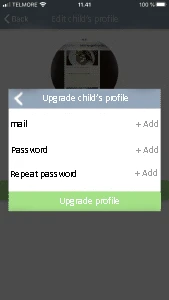
- Third, tap the green bar at the bottom Upgrade profile.
- Then, enter the child’s email address and code.
- Finally, complete the setup by pressing Upgrade Profile.
Go to How do I see a common activity wheel over all my users?
Go to How do I associate child with my user?
https://wiandi.co.uk/support/?Display_FAQ=57264
a
How do I request membership of a group?
To request or on behalf of your children to join a group:
Find the club, association or NGO group by pressing in the middle of the association’s activity wheel.
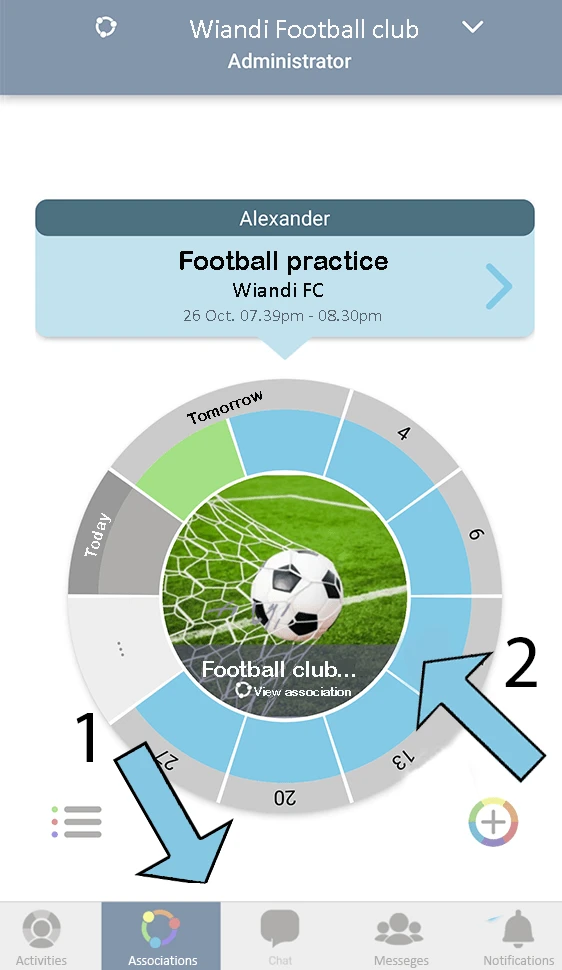
inside the club’s or association’s membership and Group list, tap “See all groups” and find the group you’d like to request membership in.
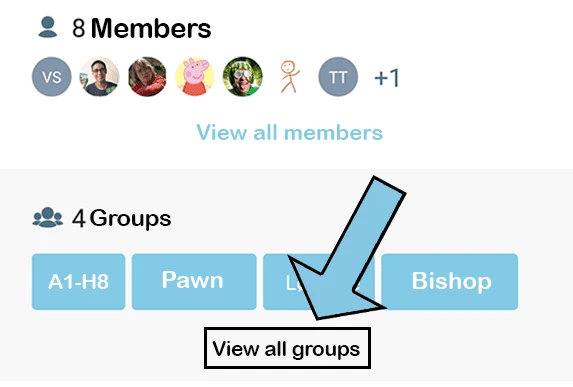
Inside the group, you or on behalf of your children can request membership of the group.
https://wiandi.co.uk/support/?Display_FAQ=56737
a
My camera is not working
Your camera might go black when you want to take a photo in Wiandi. Under Settings in your mobile, find the Wiandi app to turn on Camera.
https://wiandi.co.uk/support/?Display_FAQ=55522
a
How do I change the colour/type of an activity?
It is not possible to change the colour code of an activities. However, you can there is a way to change which is by removing the activity and creating a new one.
https://wiandi.co.uk/support/?Display_FAQ=55525
a
I cannot find an activity in my activity wheel
There are some activities in the club’s, NGO’s or association’s activity wheel that you can’t find in yours or your child’s Activity Wheel. It is because you or your child is not invited to that activity.
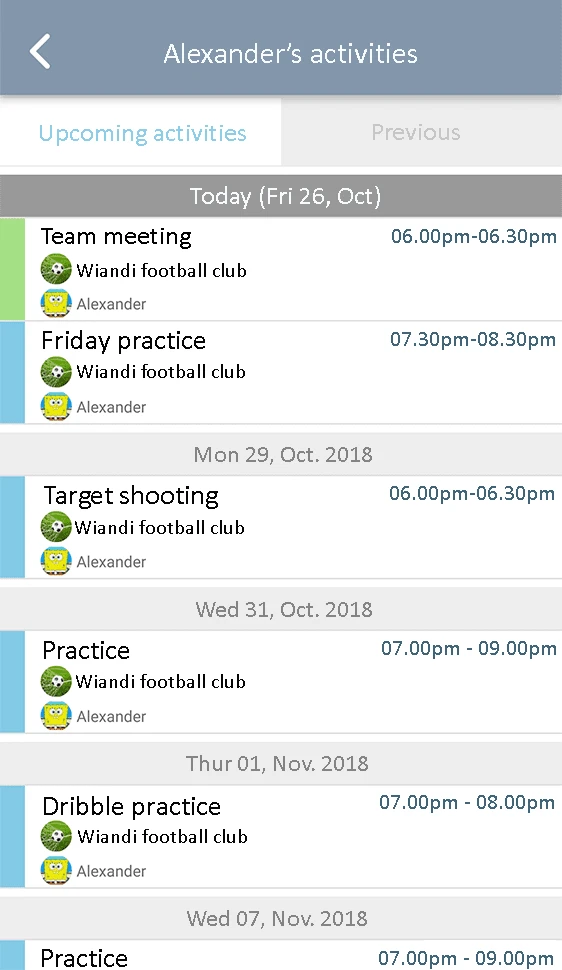
The activity wheel shows 30 days or 30 activities in the future. While, activities that are further into the future can be seen under the Activity List on the left side under the Activity Wheel.
- Go down to Activities on the left side at the bottom. Then, tap the three horizontal lines.
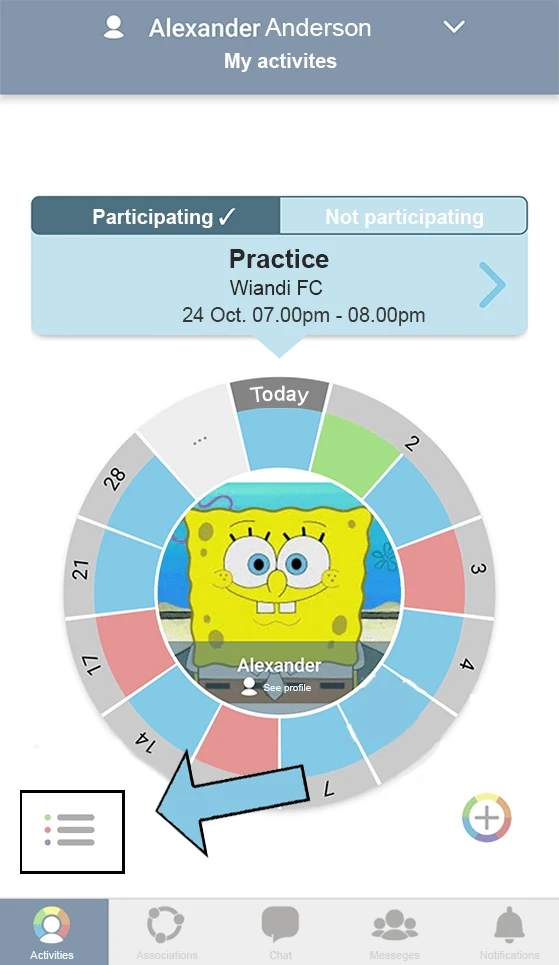
- Here, you will get an overview of all upcoming and previous activities.
https://wiandi.co.uk/support/?Display_FAQ=55522
a
How do I delete an activity?
If an activity is to be cancelled and therefore deleted:
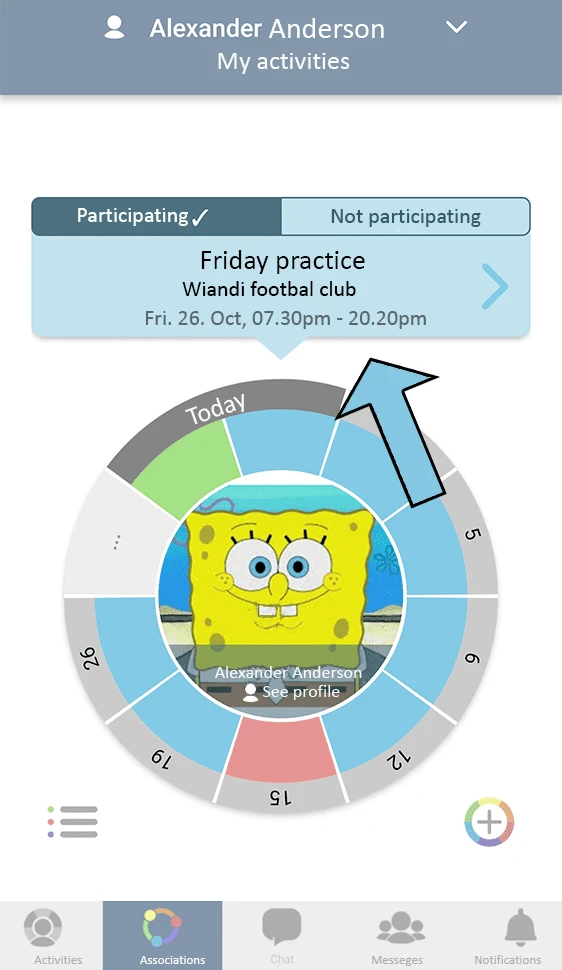
- First, tap the activity through the activity wheel or through the activity list.
- Second, tap the pencil at the top right side of the screen.
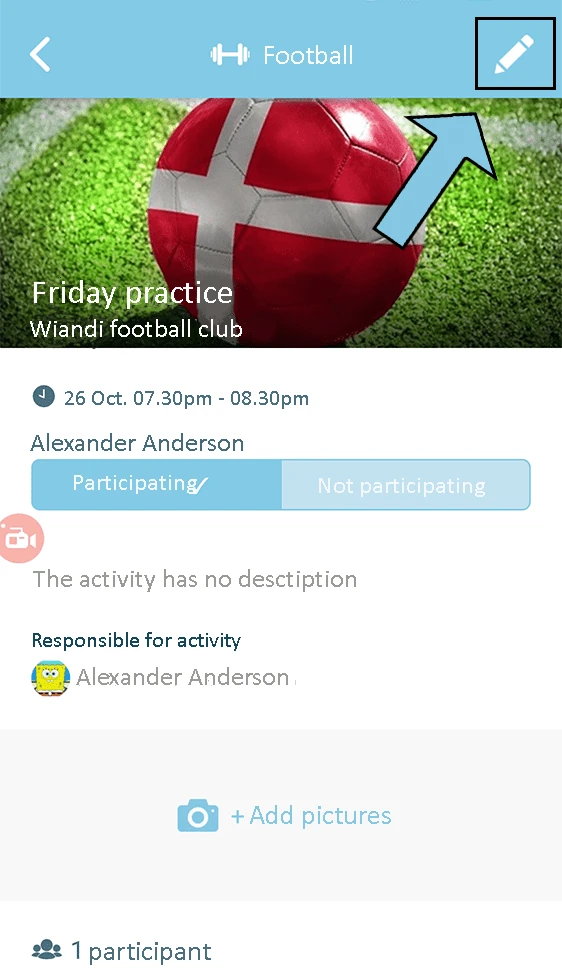
- Thirdly, at the bottom, press the text Cancel activity
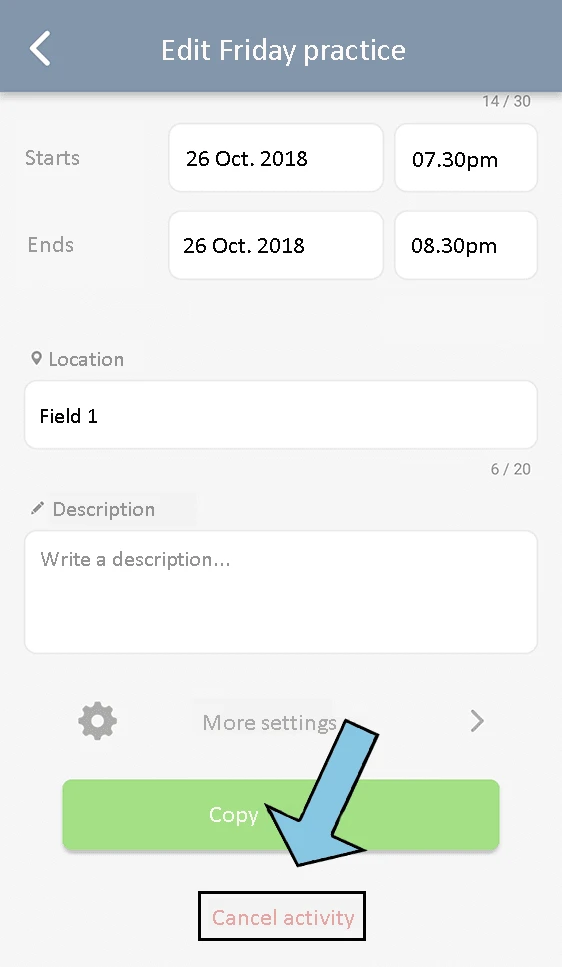 .
. - Hence, the activity is deleted from all activity wheels of the people who have been invited to participate. Also, Repeat Activity gives you a message to decide whether to delete all activities or only the individual.
Note! All invitees to an activity are notified that the activity has been canceled.
Tip! Instead of cancelling an activity, you can also change the heading to “CANCELLED + title of activity”. This sends the invited participants a notification.
Direct link
a
How do I create weekly repetitive activities?
If your team is training on the same day each week, it is possible to create repetitive activities. You create one activity that is copied to future weeks and stop on the date you specify.
- Under the activity wheel, tap Create Activity (Wiandi logo with + in the middle).
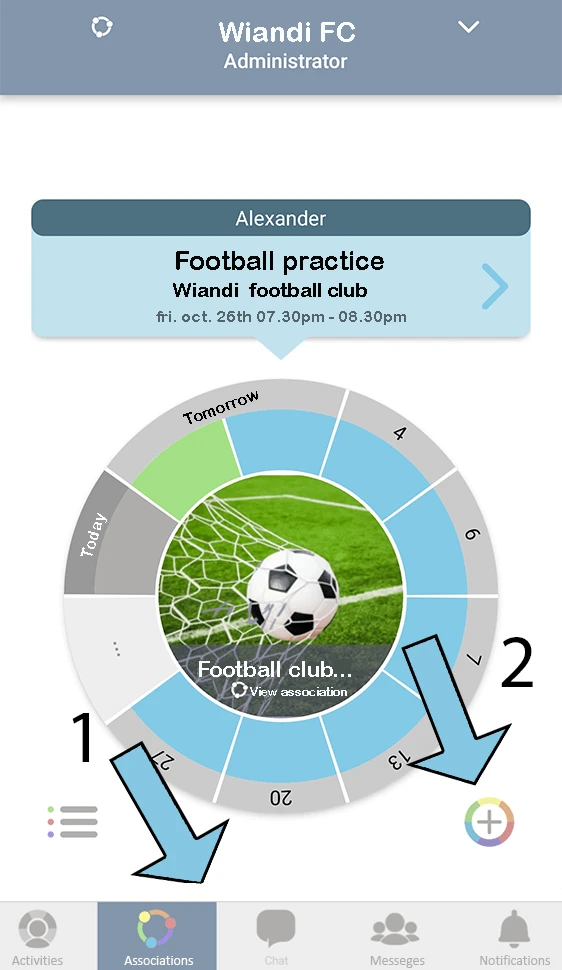
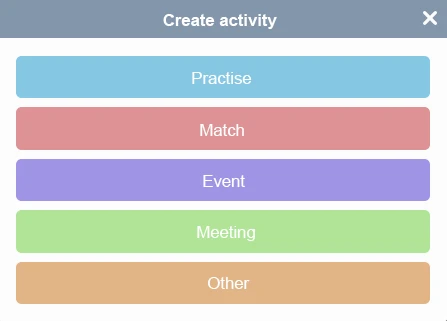
- Select a club/association in which you want to create an activity, and then select color code. Kindly note that Training, tournament, event, etc. is indicative and does not appear when the activity is created.
- After you fill in the fields with the title, time, location, and description, tap More Options, which is further down the screen.
- Here you will find Repeat Activity as the first option. Press the Do Not Repeat button, and from the drop-down menu you choose whether to repeat it every week or every two weeks.
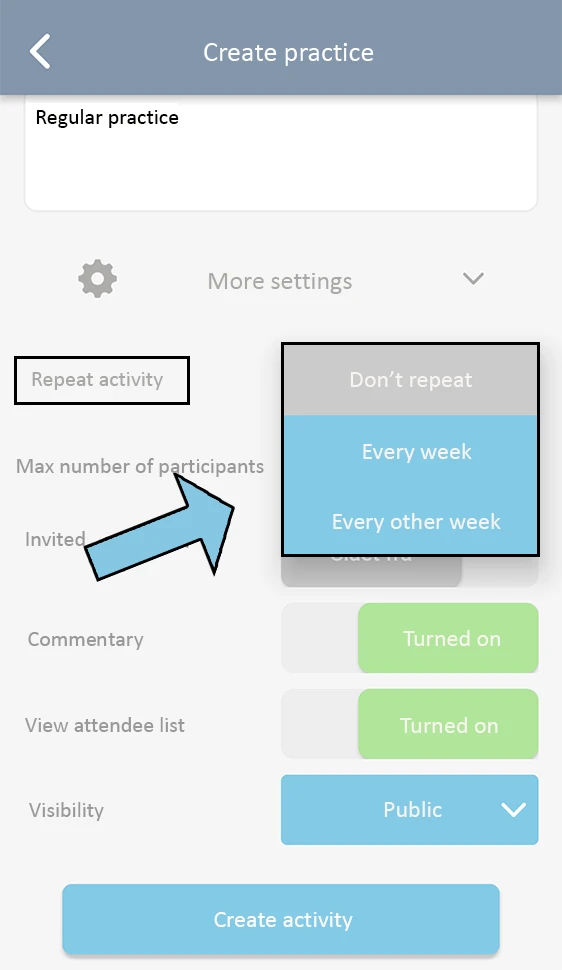
- It is important that repeat activity sets a date for how long the activity should be repeated under Repeat until.
a
How do I change the master information about Wiandi?
You can add and change information about your association at any time.
- Go to Associations at the bottom of the screen and tap Show Association in the center of the activity wheel.
- Press gears in the top right.
- Here you can change all information about your association e.g. association name, address, phone number or website.
a
How do I invite members to Wiandi?
You can use an invitation link to invite new members to your association.
- Go to Associations/club at the bottom of the screen and tap in the middle of the association’s activity wheel.
- Under Members, there is a green button called Invite Members.
- Copy an invitation link that you can insert into an email, text message, or social media. Thereafter, send to the people you want to invite.
- Finally, When the person taps the link, the person can request membership themselves in the groups that they would like to be a member of. If the person does not have a user, the person will be guided through the creation process for new users.
a
How do I add members to a group?
Under Group, you can easily add more people to each group.
- Go to Associations at the bottom of the screen and tap See Association in the center of the activity wheel.
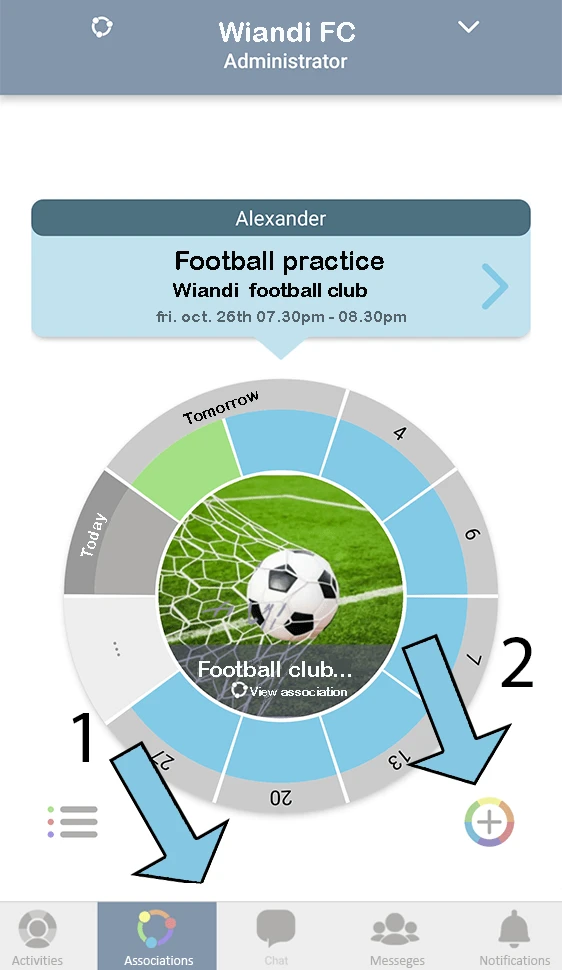
2. Tap See All Groups for an overview of groups and subgroups, as well as to see the number of members in each group.
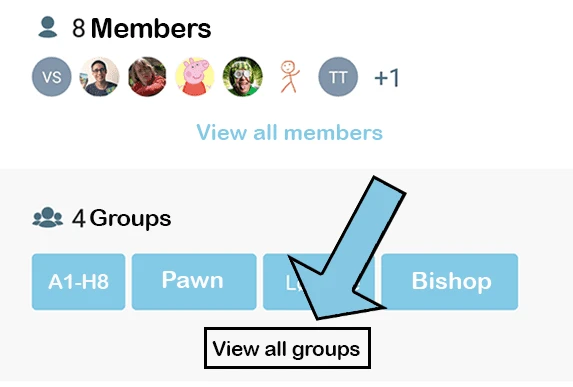
3. Tap the group you want to add people to.
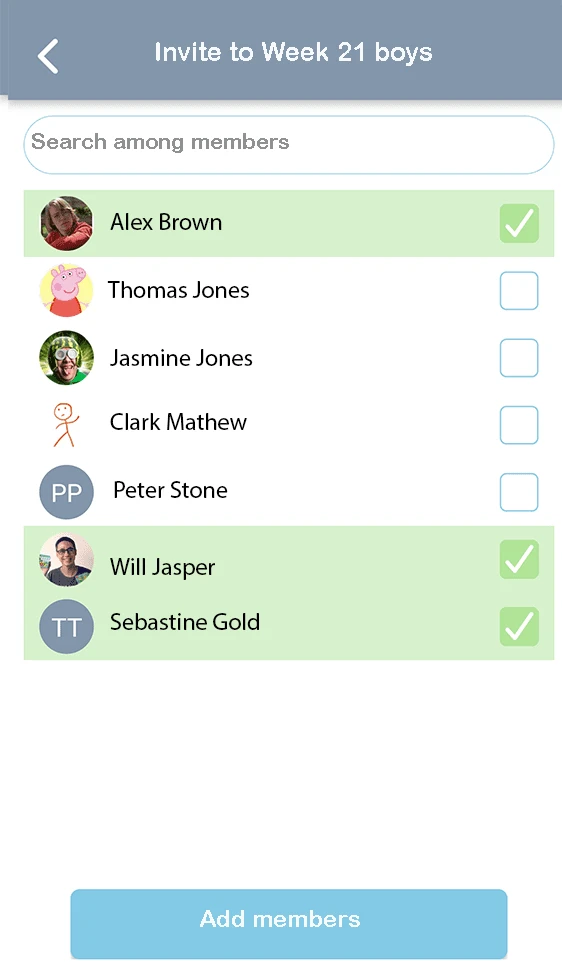
4. Next, invite members into your group by tapping Add Members. Then, select all those who are going into the group. After you select the members, you’ll finish by tapping Add Members at the bottom of the screen.
a
How do I set up boards, committees and teams as groups in Wiandi
Under Groups, you can easily create your association’s board, committee, or team
- Go to Associations at the bottom of the screen and tap See Association in the center of the activity wheel.
2. Tap See All Groups for an overview of groups and subgroups, as well as to see the number of members in each group.
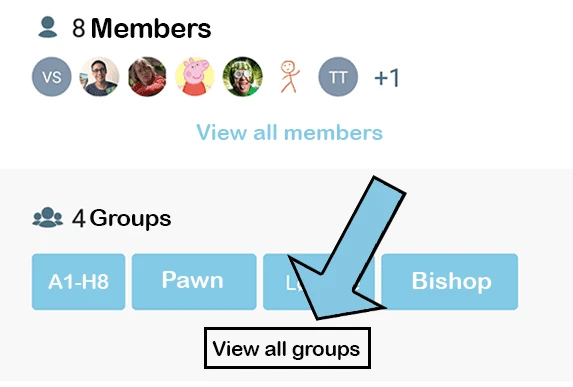
3. Tap Create Group and type the name of the group.
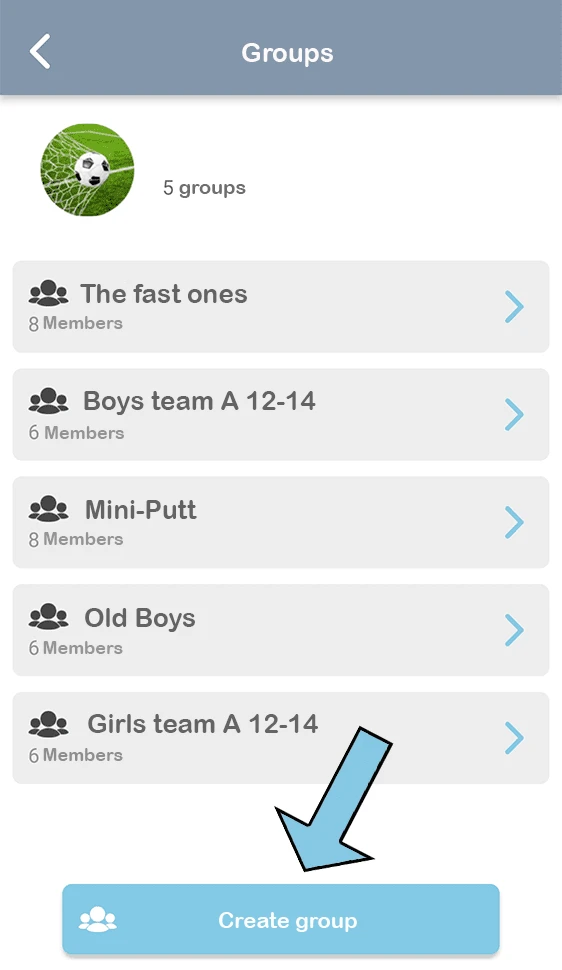
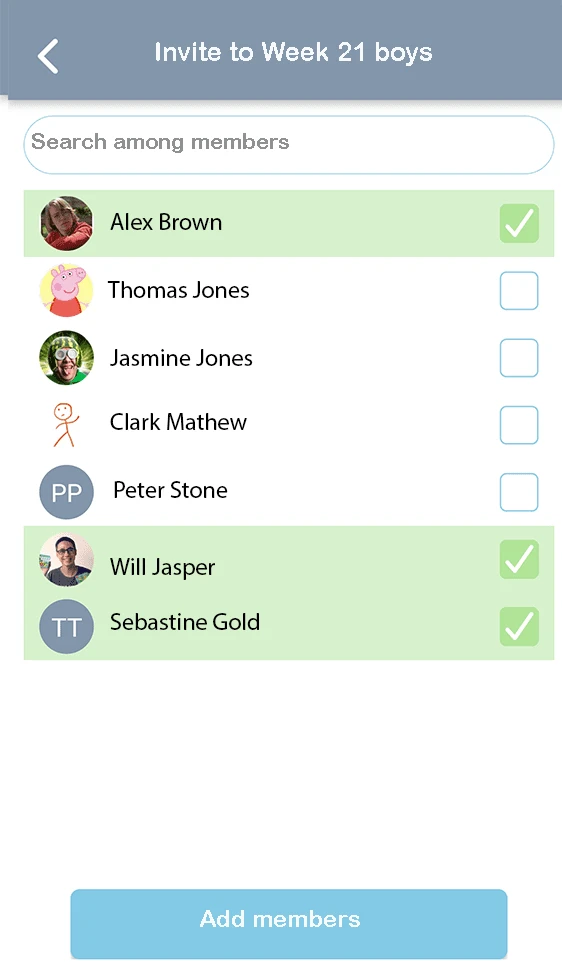
4. Finally, invite members into your group by tapping Add Members, and selecting all those who are going into the group. After you select the members, you’ll finish by tapping Add Members at the bottom of the screen.
a
How do I create an association/club/community
In connection with signing up as a user or at a later date, you can create all the associations, clubs and teams that you would like.
- Go to Associations at the bottom of the screen and then tap the association name at the top of the screen.
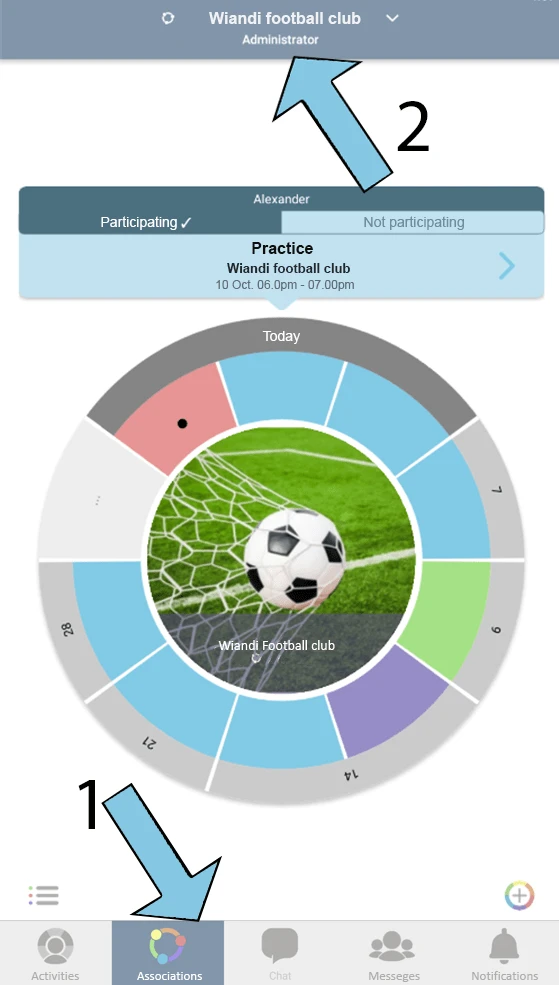
- Then, at the bottom of +Add Association, press the Create Association button.
a
How do I request membership in an association/club/community
You can request membership of an association on behalf of yourself or your child.
- Go to Associations at the bottom of the screen and then tap the association name at the top of the screen.
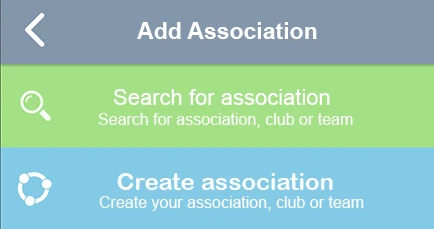
- Then press the bottom of +Add Association.
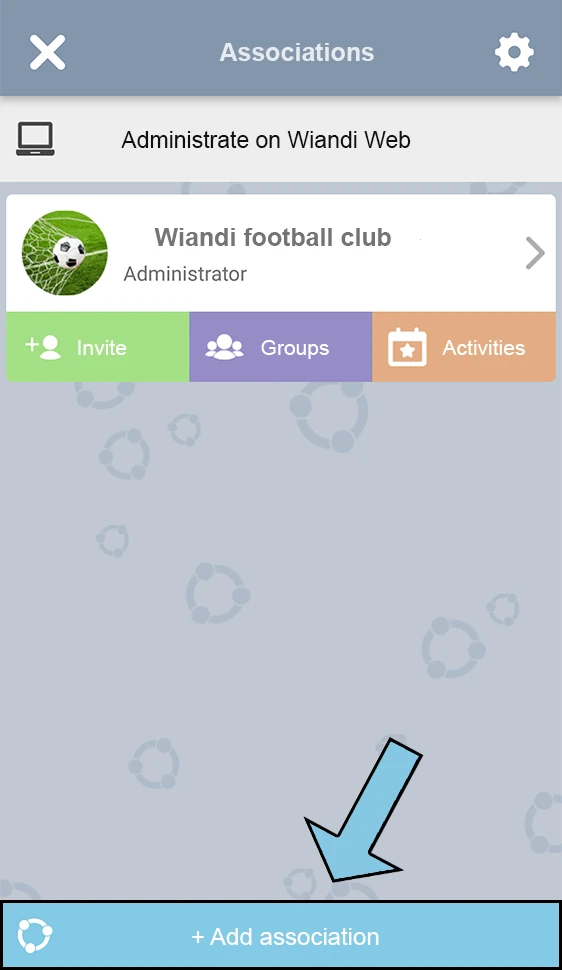
- Then tap Search for Association.
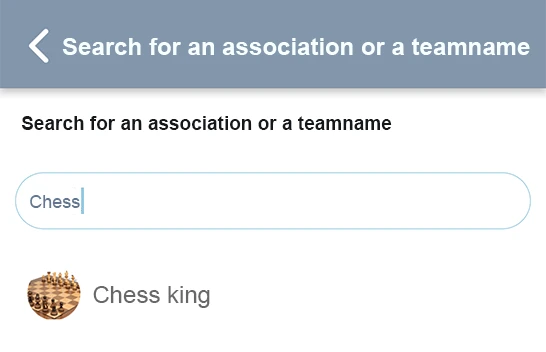
- In the search box, type the name of the association, and then tap the association.
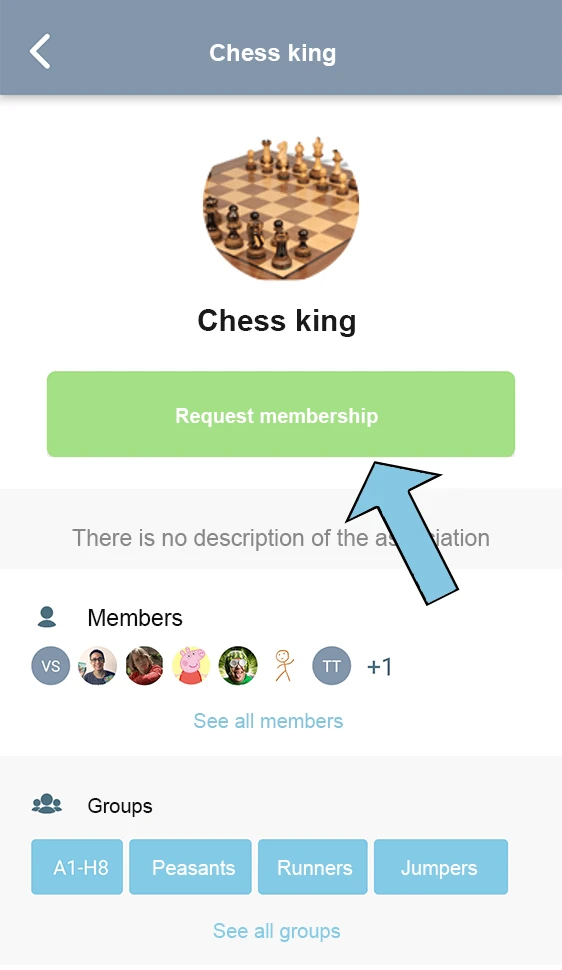
- Now you can request association membership by pressing the Request membership button
 .
. - Here you can select an administrator or group leader to send your request to. You can also select No Contact, and your request will be sent to the association’s administrators for approval.
- Finally, you choose which groups you’d like to be a member of.
https://wiandi.co.uk/support/?Display_FAQ=55495
a
I can’t add/remove members to/from groups, what should I do?
Only Group manager or administrator can move members in and out of groups. So, as an administrator, you have the right to make a member a team leader or administrator. Hence, enable them to manage their own groups and create activities.
https://wiandi.co.uk/support/?Display_FAQ=55493
a
How do I approve a parent’s/follower’s request
The request must be approved by the child, another parent or the person the request has been sent to:
- Tap the notification in notifications to approve the request (Alternatively, go under Activities and tap your name at the top of the screen, and at the bottom press +Add Person).
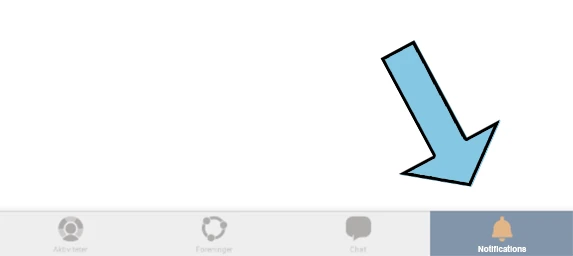
2. Then you come under My Family, where you press the pencil to approve the request.
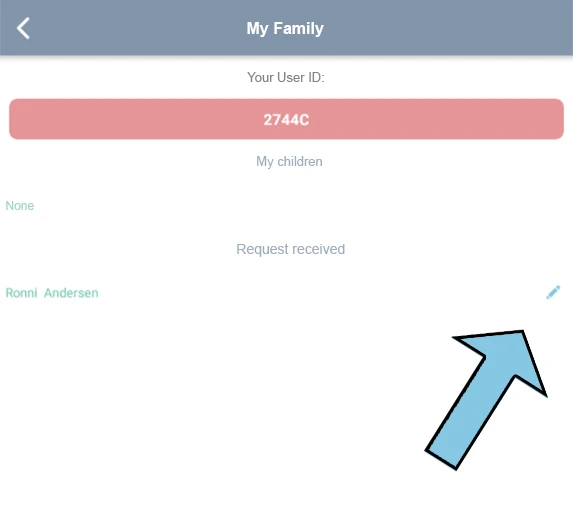
3. The child/person must be a member of an association before it can approve your request.
Go to How do I see a common activity wheel over all my users?
a
How do I find user ID on my child
To follow/add a child or person, use their User ID.
- At the far left of the bottom of the screen, select the Activities button to see your activity wheel. Then tap View Profile in the center of your activity wheel.
- Press the gear at the top right corner.
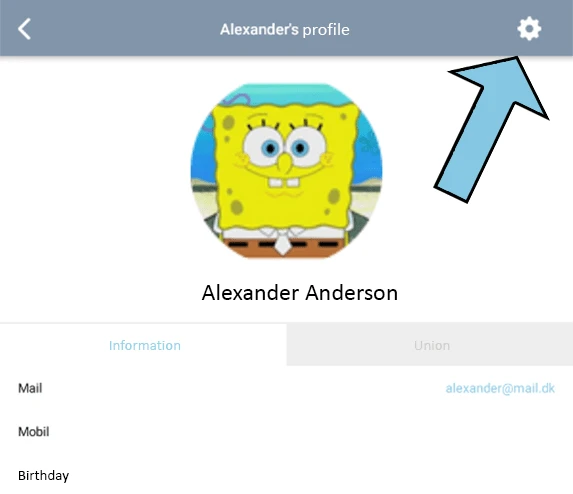
- User ID is the third item in the list.
Go to How do I approve a parent/follower’s request? Go to How do I see a common activity wheel over all my users?
a
How do I associate a child with my user?
When you associate a child with your user, you as a parent can manage activities on behalf of your child. You can also choose to follow a child and simply get an overview of your child’s activities.
As a Parent
- Go to your activity wheel at the far left of the screen.
- Then, tap your name at the top of the screen and a new page will opens up.
3. At the bottom of the page, press the +Add Person.
4. At the bottom, Follow your activities, Create child, and Follow and manage child buttons.
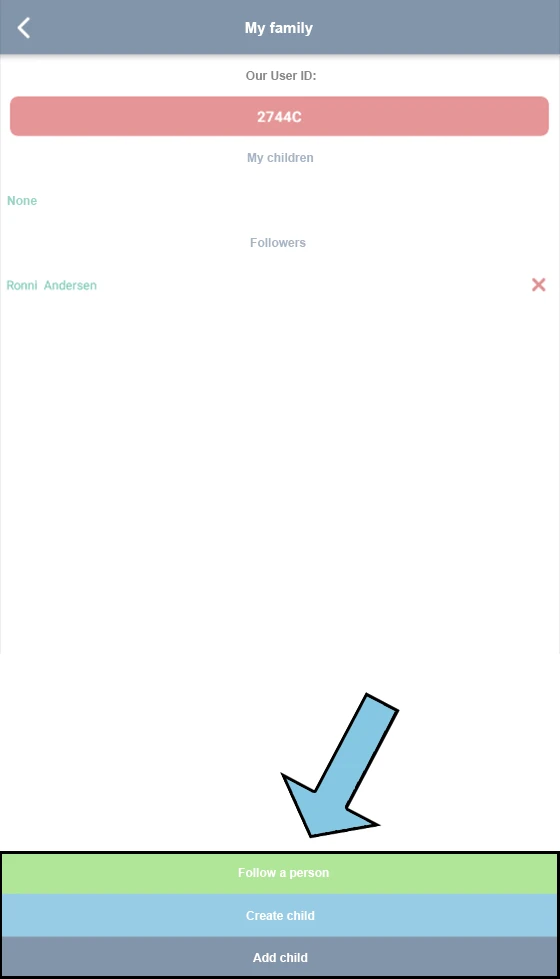
Follow others activities: Here, you can get an overview of your partner’s or others activities.
5. Create child: In addition, You can manage activities for a child who is associated with your user profile.
- Press the center of the association’s activity wheel.
- Then, tap Request and you can apply for membership of the association on behalf of your child.
Go to How do I find User ID on my child or a my user?
Go to How do I approve a parent/follower’s request?
Go to How do I see a common activity wheel over all my users?
Go to How do I upgrade child to self-user?
a
How do I see my family’s activities in a shared activity wheel?
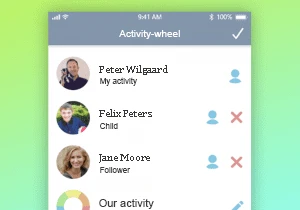
During My/Our activities, you can access your activities and your family’s activities in a joint activity wheel.
- To see you or your child’s activity wheel go to My/Our activities in the top of the screen
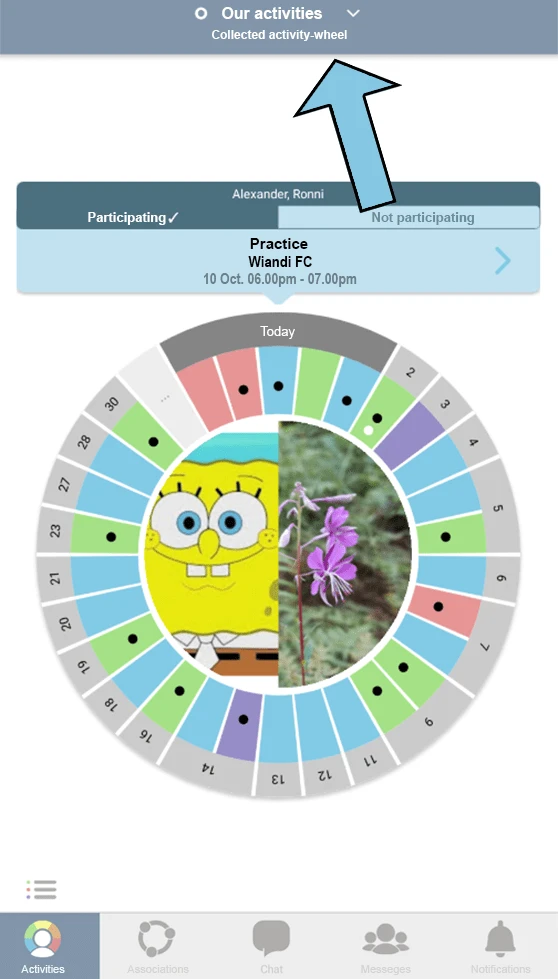
- Here you have the opportunity to choose between your own children’s and or partner’s activity wheel.
- You can also select “Our Activities”, which brings together all activity wheels in a common activity wheel that shows the whole family’s activities across associations and teams.
a
How do I change my user information?
You can edit your user information at any time if you need to change or add information to your user profile.
- At the far left of the bottom of the screen, select the Activities button to see your activity wheel. Then tap View Profile in the center of your activity wheel.
2. Tap the gear at the top right of the screen.
Here you can edit your user profile, change your password, and link your activities to your mobile calendar.
a
How do I change my password?
You can change your password at any time under your profile information.
- Navigate to your activity wheel, which is located to the far left at the bottom of the screen.
- Then tap View Profile which is in the middle of your activity wheel.
- Tap the gear at the top right corner of the screen.
- Then tap the Change Password button.
https://minforening.dk/support/?Display_FAQ=55475
a
What if I forgot my password?
If you forgot your password, then tap Forgot the code? in the log-in screen of the app.
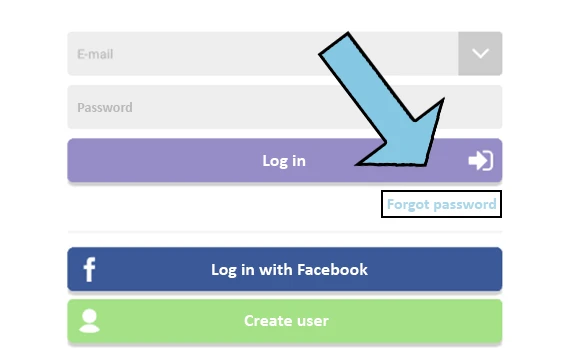
- Here you enter the email address associated with your user. You will receive shortly after an email from Wiandi.
- When you tap the link that’s in the email, you’ll be asked to enter your new password.
- You can now sign in with your user with your new password.
a
Why can’t our members indicate whether they want to participate or not?
Your members cannot specify whether they are participating or not in an activity. It is probably because they’re not invited to that activity. So, you must add the member to the invited group. You can also invite the group that the person is a member of.
a
How do I share my activities with my calendar?
You can easily share your activities from Wiandi to a calendar, e.g. on your phone or computer.
- Tap activities at the bottom of your screen.
- Tap in the center of the activity wheel to get into your profile.
3. Then tap the gear at the top right corner of the screen.
4. Now a new window opens with three blue boxes appearing at the bottom, here you must select “share calendar”.
5. If you are on an iPhone, the calendar will be shared directly. If you are on an Android device, follow the guide that pops up.
6. The first thing you do is to sign sign in to your Google calendar on your PC. then you add a new calendar URL. To do this, press add calendar on the three dots.
7. Now a window pops up that says FROM URL. You press FROM URL and you need to import the link from your phone. Then you press Add Calender. Your Wiandi activities are now shared with your Google Calendar.
a
I can’t create activities, what should I do?
As a member, you cannot create activities. Thus, an administrator has to make you as either a team leader or administrator in order to create activities.
a
How can I create an activity?
As an administrator or team leader, you can create an activity in Wiandi.
- First, tap activities at the bottom of your screen.
- Then tap the round “+” on the right side of your screen.
- You will now be directed to your association overview where you will select the association in which you want the activity to be created.
- Once you have chosen the association, you must now choose what form your activity takes, whether it is a work out, a meeting, or an event.
- After you select the activity type, fill in your information.
- Then press the blue button at the bottom of your “create activity” screen.
- Now you can invite your members to the activity and they can then tap whether they’re participating or not.
a
Where can I download Wiandi?
Wiandi is available on both iOS and Android. It can be downloaded from the App Store and Google Play.


a
What does Wiandi cost?
Wiandi is an app, web, and payment system that is 100% free.
We have been a part of clubs and associations ourselves, so we know every pound counts, which is why Wiandi is free of charge. Wiandi is financed through sponsorship with companies, who are passionate about the local businesses
Sponsorships works by having their logo briefly shown at the start of the app. After that, the app is totally free of any sponsors and ads. The user’s data is not sold to any third party, which is commonly known from social media platforms.
a
How do I request membership of a group?
To request or on behalf of your children to join a group:
Find the association groups by pressing in the middle of the association’s activity wheel.
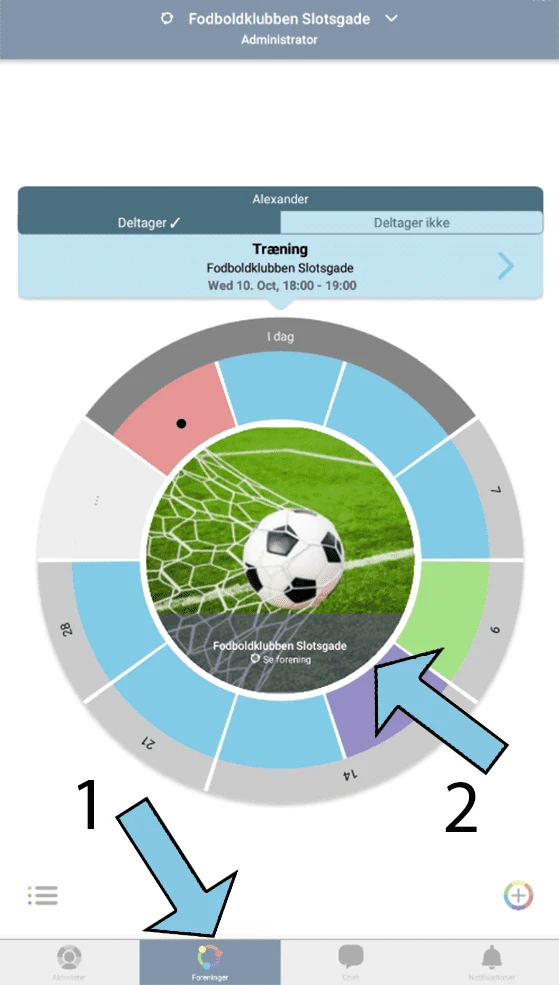
Once you’re inside the association’s membership and Group list, tap “See all groups” and find the group you’d like to request membership in.
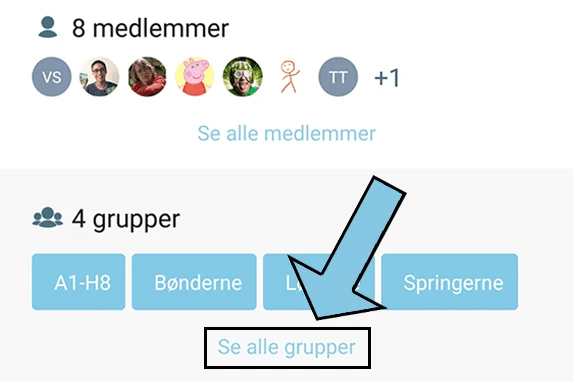
Inside the group, you or on behalf of your children can request membership of the group.
a
How do I create ongoing payments
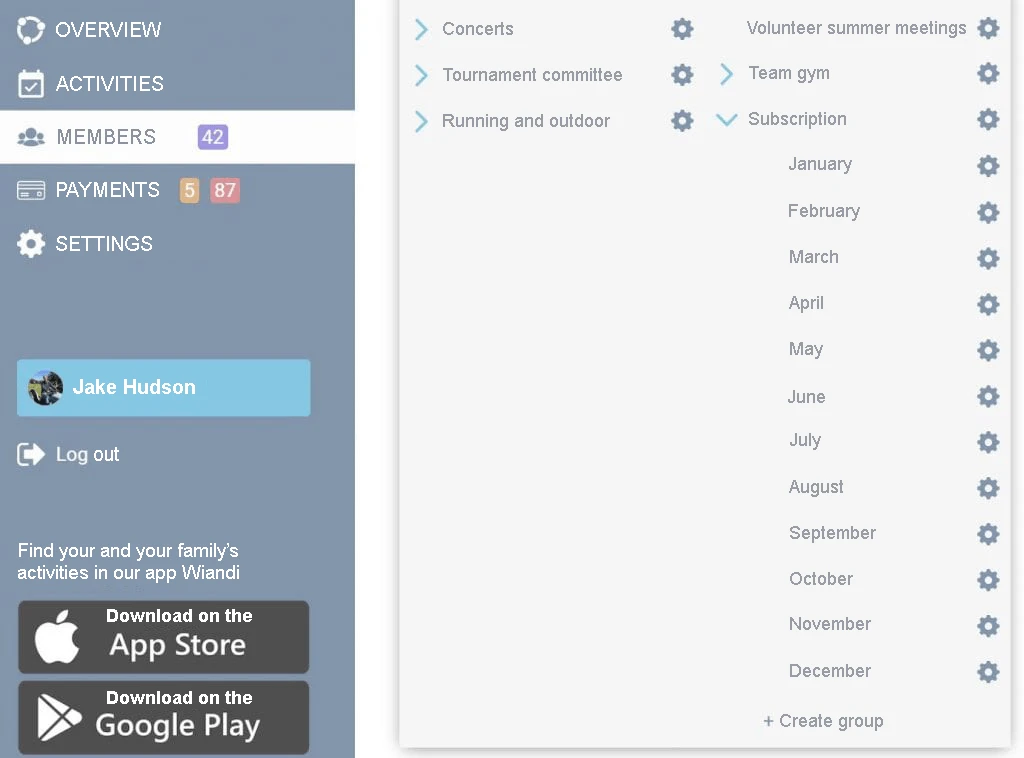
In Members, you can create the fees group. Also, you can create subgroups with the months of the year. See the picture below.
For instance, you can create a payment entitled ‘January 2019 contingent’. With this, the subgroup ‘January’ is invited. Remember to set the payment period for the whole month of January. see guide here.
Furthermore, when you have new members in your association, you can add new members in the appropriate subgroup. They are automatically charged for the payment of annual fees.
Note! You can also use the Reduced Payment function, whereby new members are automatically charged the quota applicable for the remainder of the quota period, see guide here.
a
Use templates for ordering food, clothing, accomodation etc.
Insert link to template in an activity description so that participants can order food, clothing, accommodation, etc.
See the following examples as inspiration:
Food ordering – 1 person: https://forms.gle/5WdvBu4ieQ3bHwe38
Food ordering – family: https://forms.gle/6rcYnm5WvYQQyFGVA
Clothing order – 1 person: https://forms.gle/mGNXtHu56LsT47NX6
Clothing order – family: https://forms.gle/8odnHFd75JYYSUGeA
Accommodation – 1 person: https://forms.gle/SWWgPxYMLEGa5i6h7
Accommodation – family: https://forms.gle/3a6P652sYo2Mnoz36
Existing templates in Google Forms:
Ordering: Order Form
Clothing order: T-shirts Sign Up
Get feedback on your event: Event Feedback
Activity evaluation: Exit ticket
Evaluation of season: Course Evaluation
Find meeting time: Find a Time
Quiz: Blank quiz (Kahoot)
Tips and tricks in creating Google Form:
- Go to Settings/General: Remove the check mark from “Requires sign in” so that everyone can access the link online.
- Go to Settings/Presentation: Type your own “Confirmation message” instead of the autogenerated message.
- See Preview to see your finished template before you tap Send.
- Send via Link. Remember to tick the Shorten URL.
- Copy the abbreviated link and paste it into an activity’s description or in a group chat.
a
Ticking newsletter and consent statement when adding members
Members can check boxes, such as receiving the association’s newsletter or consenting to the use of images on social media. Therefore, you can integrate Mailmunch into the association’s website and Wiandi’s invitation link. This makes it easy to send out newsletters. Furthermore, you get an overview of members’ consent statements and is relatively easy to set up.
a
Insert link to a club or association document in Wiandi?
Insert links to documents into your file-sharing system such as G-drive, OneDrive and DropBox.
Link sharing makes it easy for members to access the association’s documents in an activity’s description, personal chat. So is the group chat, messages, or in the association’s description.
a
How do I delete a club or association?
It is not possible to delete an association yourself. However, as an administrator you can have your association deleted by sending an email to [email protected]
a
Change association name and information
You can edit the name and information of your association under Settings on the web.
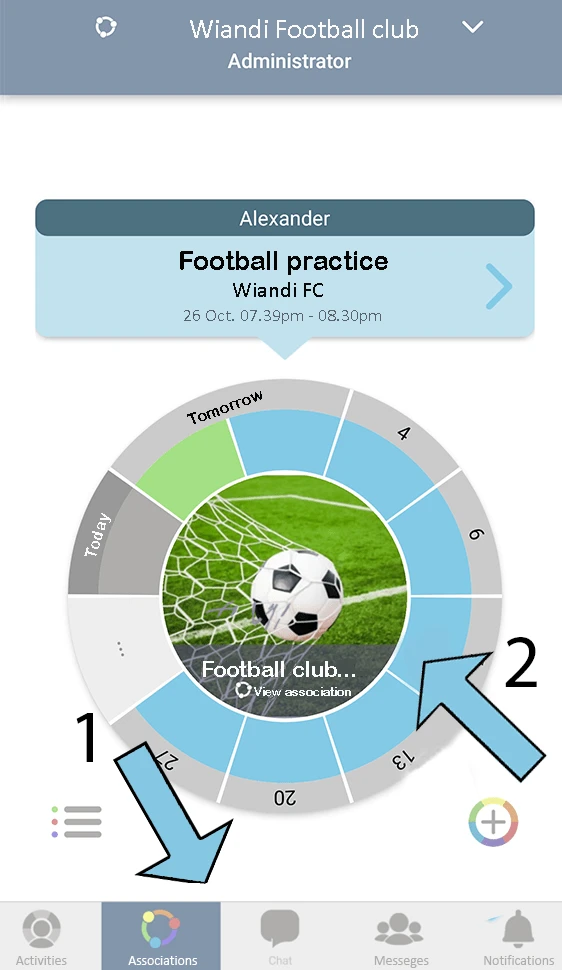
Of course, it is also possible to edit the association name and information in the app. Firstly, press the centre of the association’s activity wheel. Then press the nut on the right side to edit the association’s information.
a
How do you create a multi-branch association?
Create separate activity wheels if you are multi-branch association with different association accounts and treasurer associated with each department.
Each department will thus have its own activity wheel, giving a unique overview of its activities.
Although you as a multi-branch association have created separate activity wheels for each department, the app allows you to assemble the sections’ activity wheels into a common activity wheel. This gives you a comprehensive overview of all the activities across departments, see more here.
See also here how to export the association’s activities to the association’s website.
If you want help with setting up a multi-branch association, please contact us here.
a
How do I create a multi-prolonged association?
For a multi-pronged association, it may be advantageous to create activity wheels for the individual departments, e.g. VBI Handball, VBI Football, VBI Volley, etc.
Thus, it is possible for each member of the Wiandi app to bring together the associations of which you are a member. Also the one you follows can be under a single activity wheel. This gives a comprehensive overview of the activities of a multi-pronged association.
a
How do I create another association?
You can create any association that you want. Wiandi is used by all types of communities such as families, networks, organizations, NGO, and associations.
If you are a member of several associations, you will find your activities across your associations in your personal activity wheel in Wiandi. Read more here.
However, you can also combine all your associations into a common activity wheel, so you get a comprehensive overview of your associations’ activities. Read more here.
If you are a multi-branch association, the different departments can have their own activity.
See the guide below to see how an Administrator creates another association in Wiandi:
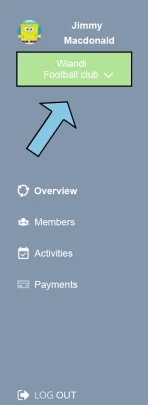
- Firstly, Navigate to the top of the navigation bar on the left side of the screen. Press the green button with your association name.
2. At the bottom, press Create Association.
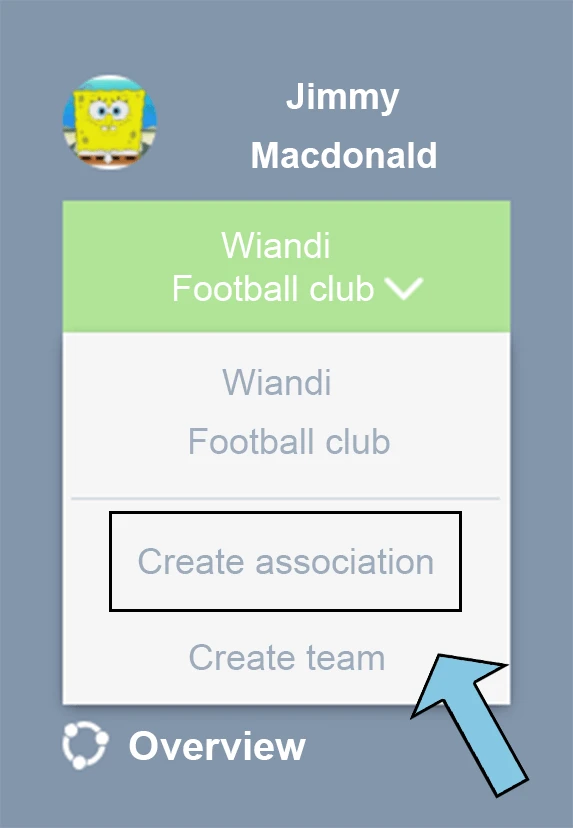
3. Then, you fill in the fields and end by pressing the Create Association button.
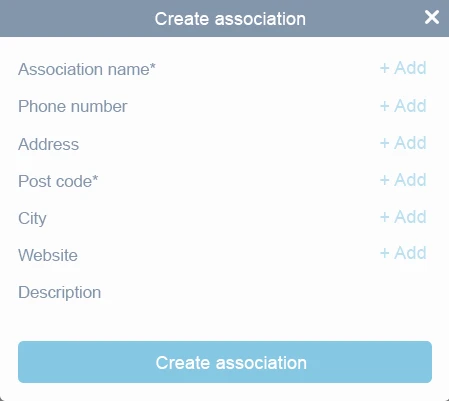
a
How do I create a club or association?
Once you have made a user and logged in, you can easily create your own association. By doing the following:
- Sign in with your user or create a new user.
- Navigate to the left side of the screen and press the green Create Association button.
- Fill in the fields and you are in the process of your newly created association.
The advantage of managing your association on our website is that you have a larger screen available and that gives more overview of your association.
a
How do I Share the the association’s activities with a calendar?
Export calendar iCal-file from Wiandi
- Firstly, go to http://web.wiandi.co.uk and sign in with your Wiandi user.
- Secondly, choose your association from the left menu.
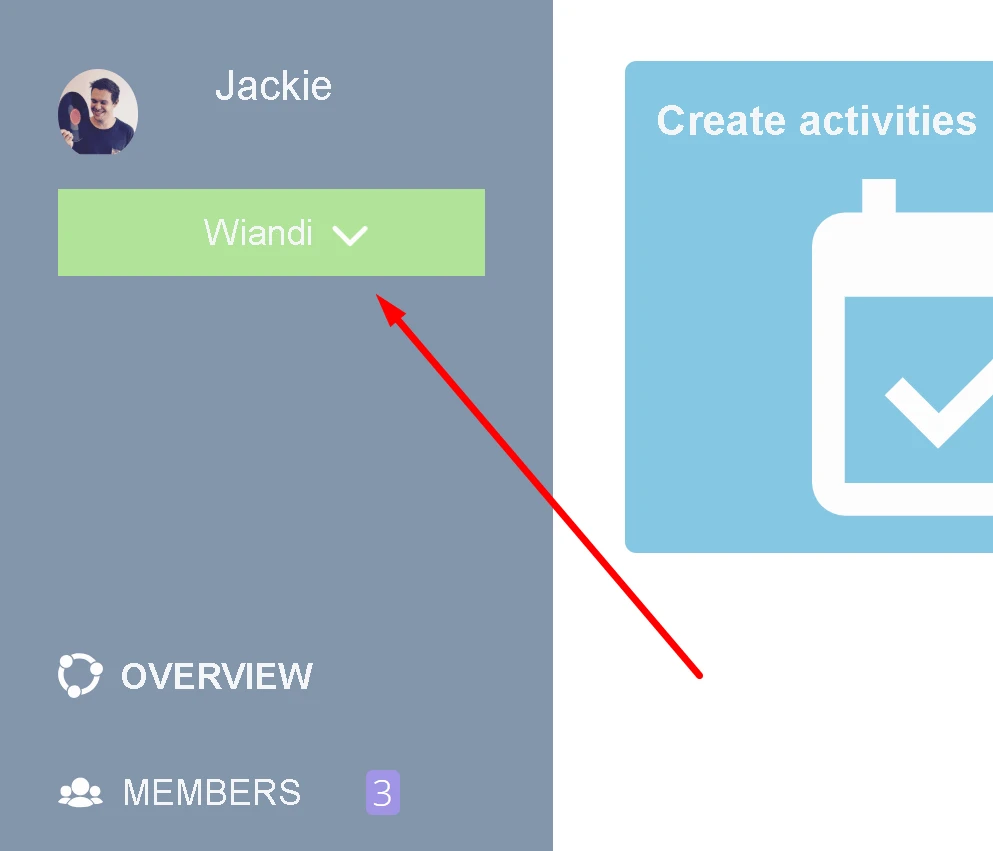
- Thirdly, tap “Activities” on the left menu
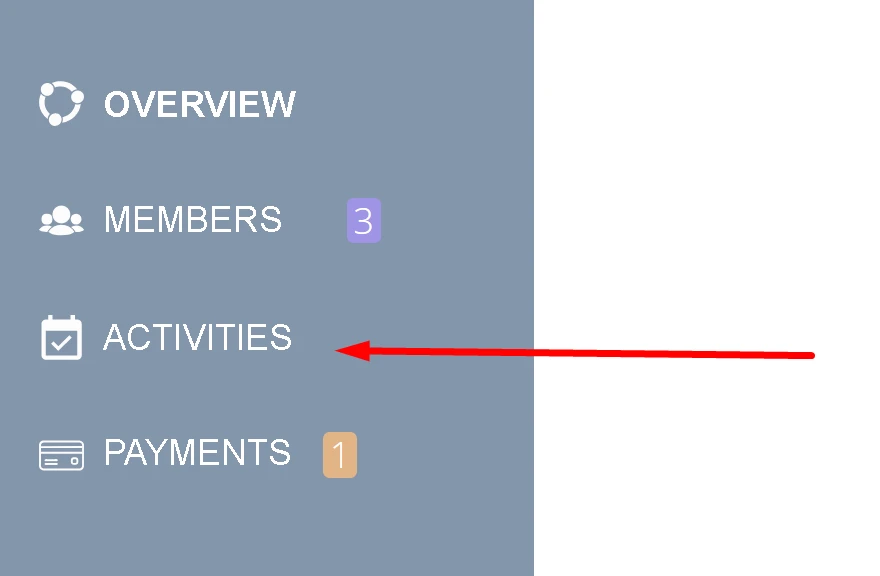
- Then tap “Export to Calendar” in the right corner, you now receive an iCal file named “ical.ics”
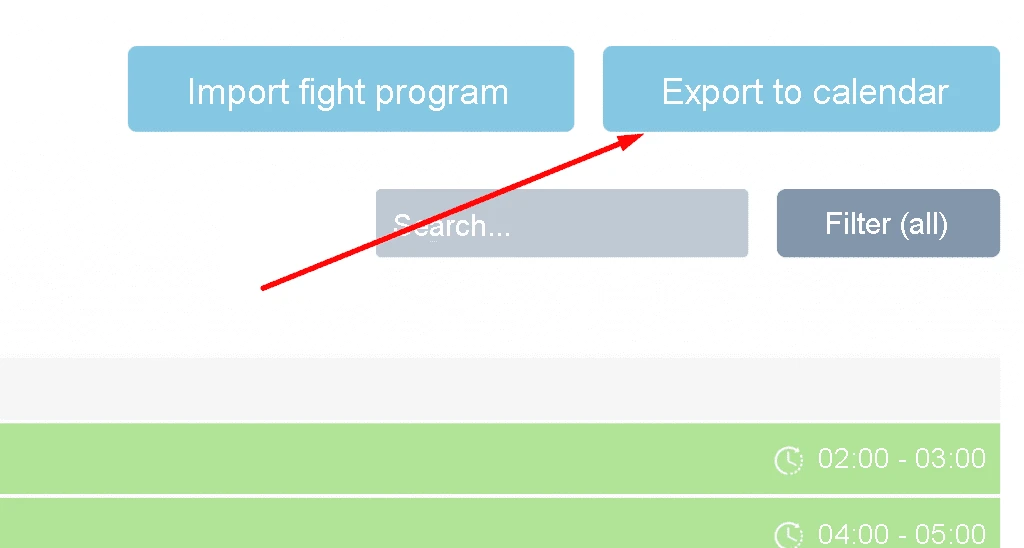
iCal file can be imported into a variety of calendars (e.g. Google Calendar and Apple Calendar).
We recommend importing the iCal file into a Google Calendar if you want to insert it on your website.
Import iCal-file from Google Calendar
- Go to https://calendar.google.com/
- If you don’t already have a Google Account, create one and sign in
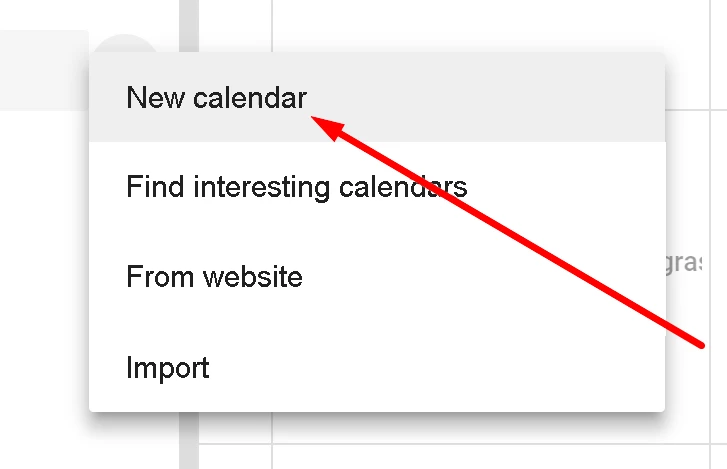
- On the left menu, tap “+” and select “New Calendar”
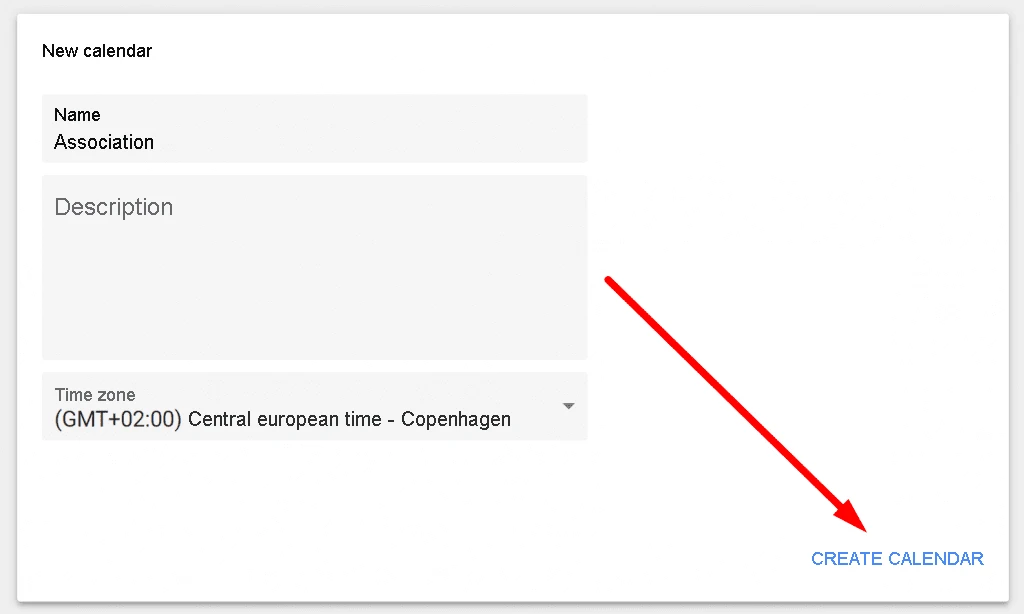
- Enter name and description if necessary (name may be your association name, for example), then tap “Create calendar”
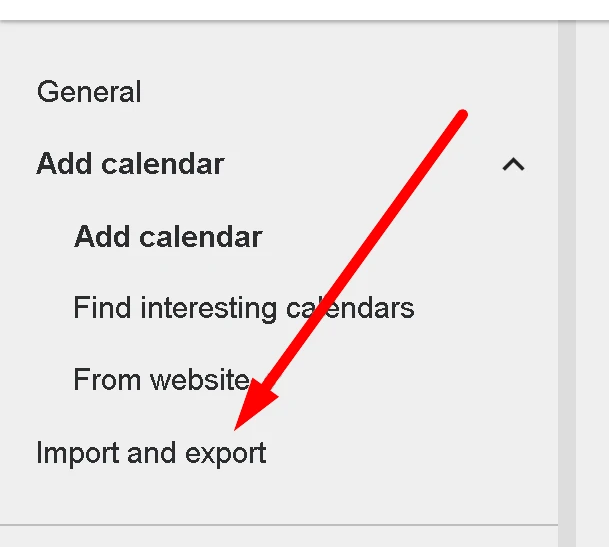
- Tap “Import and Export” on the left menu
- Under your computer’s Transfers, tap “Choose file from computer” and under your computer’s Transfers, select the iCal file that you exported from Wiandi
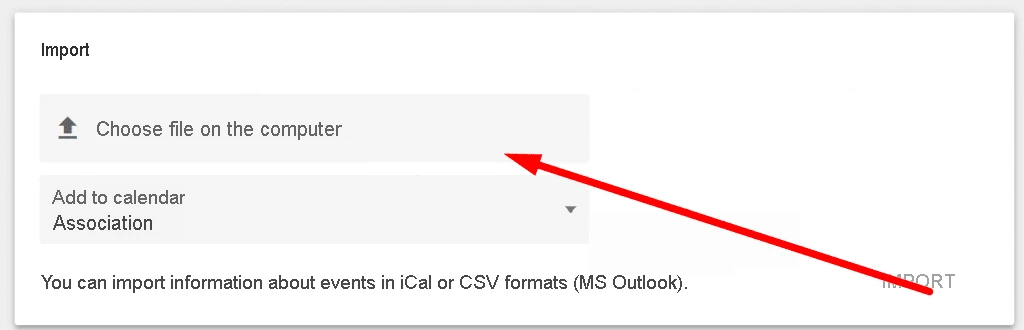
- Be sure that the “Add to Calendar” field is set to the calendar you just created
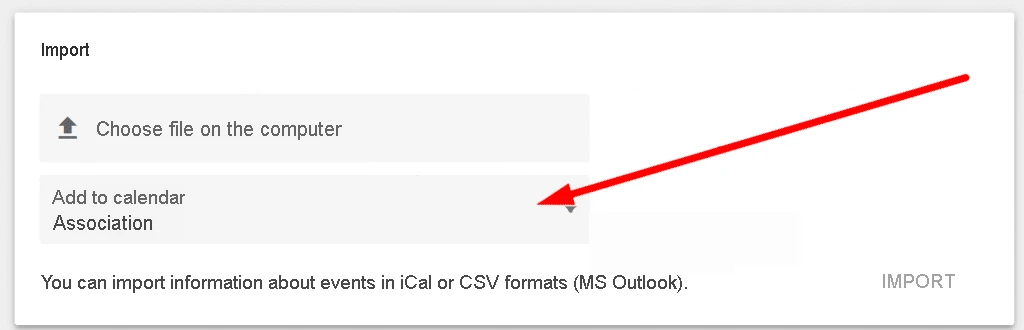
- Tap “Import”
- Finally, Press the back arrow in the upper-left corner
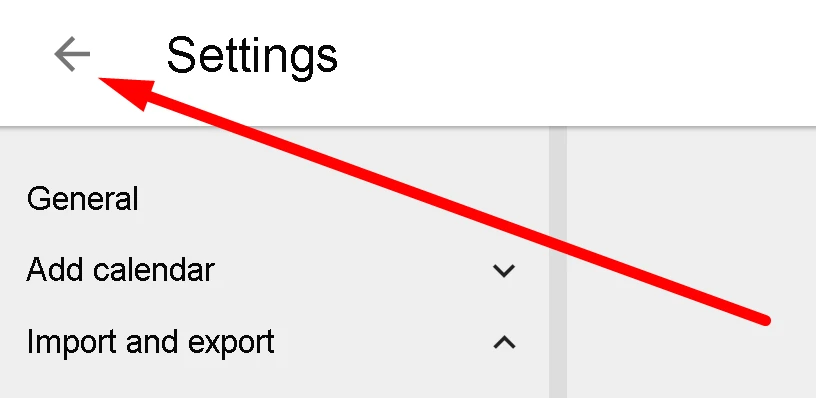
Now, you should be able to see all your association’s Wiandi activities in the calendar. Therefore, future activities added to Wiandi will now be automatically imported into the Google Calendar.
To insert the calendar on the association’s website, read the following guide:
How do I insert an activity list on the association’s website?
a
How do I merge my first name and last name into the Name (Import members) column?
In your downloaded CSV Import Template, use the following code to merge the first name and last name into the column ‘name’: =H2&” “&I2
Approach:
- Firstly, Insert the code in column B.
- Secondly, Insert first name in column H
- Then Insert last name in column I.
Note! The code can be dragged from the lower-right corner over the number of cells that you have number of members.
a
Do members have access to the web?
The Wiandi web is used by the administrators of your association. This allows them to easily manage the association’s activities, members and payments.
The association’s members, use the Wiandi app on their smartphone and tablet.
Moreover, Imported members who have not signed up as a user in Wiandi will receive emails. The email will contain information about the activities, messages, and payments they are invited to.
However, members can also get PC access by using Bluestack, a free program that allows apps to be run on your computer.
a
Will all imported members be notified of activities?
Yes. Imported members who are sent an invitation email but have not signed up as a user in Wiandi. The email has information about the activities they or their group are invited to. Thus, they receive emails when invited or requested to join an activity. In addition, they get emails with Messages and quota collection.
Furthermore, imported members who have not been sent an invitation email will not receive emails about invitation. Hence there is time to plan and create activities before inviting the imported members to register as a user in Wiandi.
On the Wiandi web, imported members status is Inactive. This is colored red or orange. However this depends on whether they have received invitational email from the association. This will allow them sign up via link as a user in Wiandi.
a
Team setting for matches
If you want to put the team to a match, you must individually invite the players in your gross squad under Persons. Then you can remove the players who are not on the team card. When a player is removed from the activity, they receive a notification that they have been removed from the activity. Afterwards, the activity is no longer found in the player’s activity wheel.
a
How are groups used?
As an administrator and group leader, you can create boards, committees, and teams under Groups. Thus, when you create an activity, it is possible to invite one or more groups. If a member is added to the group, they are automatically invited to the group’s activities.
a
Sharing files and documents
You can share the association’s files from G drive, Dropbox, or OneDrive. Simply insert a link in the Description or Comment Trail during the activity. Of course, you can also insert your links into the chat.
See these blog posts for document management and structuring the association’s documents:
a
How do I delete an activity?
If you want to delete an activity e.g. if training is cancelled. Do so by:
- Sign in to the website and tap Activities.
- Tap the activity that you want to delete. A window opens and you press the Delete button.
If it is a repetitive activity, you can delete or change only one activity. For instance, if the workout is cancelled or moved to another time. Also, you can delete and change all repeating activities.
Note! If an activity is cancelled, all invitees are notified about the change.
Tip! Instead of cancelling an activity, you can also change the heading to “CANCELLED + title of activity”. This will give the invited participants a notification to that effect.
a
How to edit an activity
You can change your activities at any time if there are changes or errors in the activity.
- Firstly, Log on to the website and navigate over the left side of the screen and tap Activities.
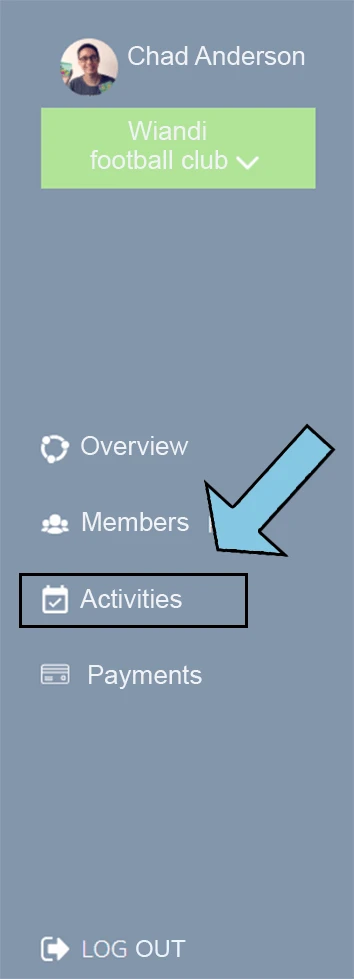
2. Secondly, Tap the activity you want to change. A window opens and you press the Edit button.
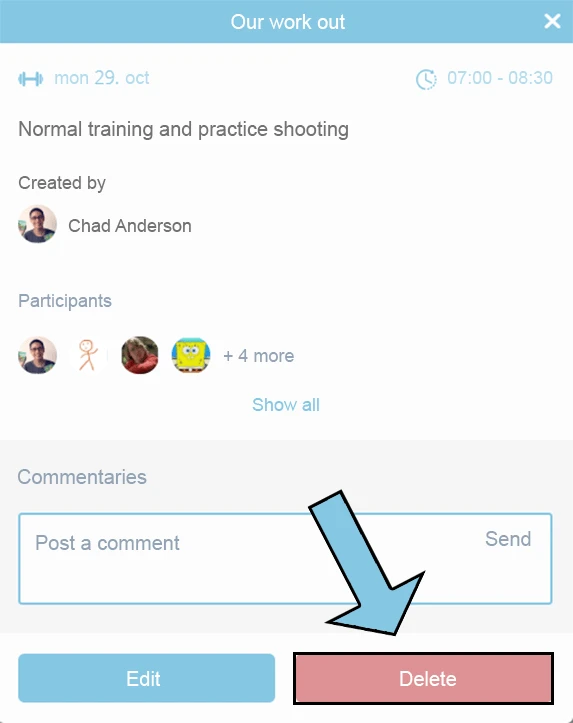
3. Be sure to tap Save Changes when you’re done editing the activity.
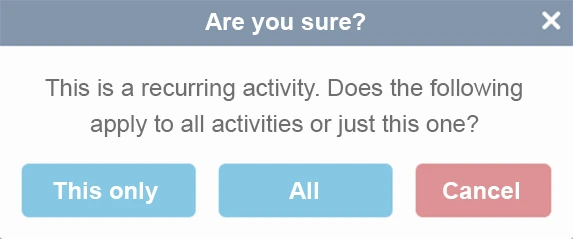
As seen in the image above, you have the option to edit all activities.
If the activity is a repetitive activity, then it is possible to edit them all, or just the one that you just corrected, if e.g. the workout moves to another time.
a
Response time and Reminders in an activity
Response deadline in an activity allows invitees to receive a reminder two days before the response deadline.
If the response deadline is exceeded, the guests will receive a notification. This states that the guests can no longer register for the activity.
However, as an activity manager, you can always change the response deadline in an activity. This allows guests to sign up for the activity again.
For repeated activities, the response deadline is repeated based on the individual repeat activities. For instance, you can set a response deadline set in a repeat activity to Tuesday at 2pm. Therefore, on this day of the week and time a reminder is issued for the next activity.
As activity manager, you can edit an activity as well as the response deadline in a repeat activity.
link
a
How do I set the maximum number of participants in an activity(booking)
When you create an activity, you can specify the maximum number of participants. This sets a limit on the number of participants in the activity. This allows you to create an activity that members can book on (booking).
See here . How to create a weekly recurring activity with a maximum number of participants that members must pay to participate in (payment booking).
a
How to do a repetitive activity?
Just like in our app, it is also possible to create repetitive activities through our website.
- Once logged in to the website, navigate to the left side of the screen and tap Activities.
2. Tap the Create Activity button at the top of the screen.
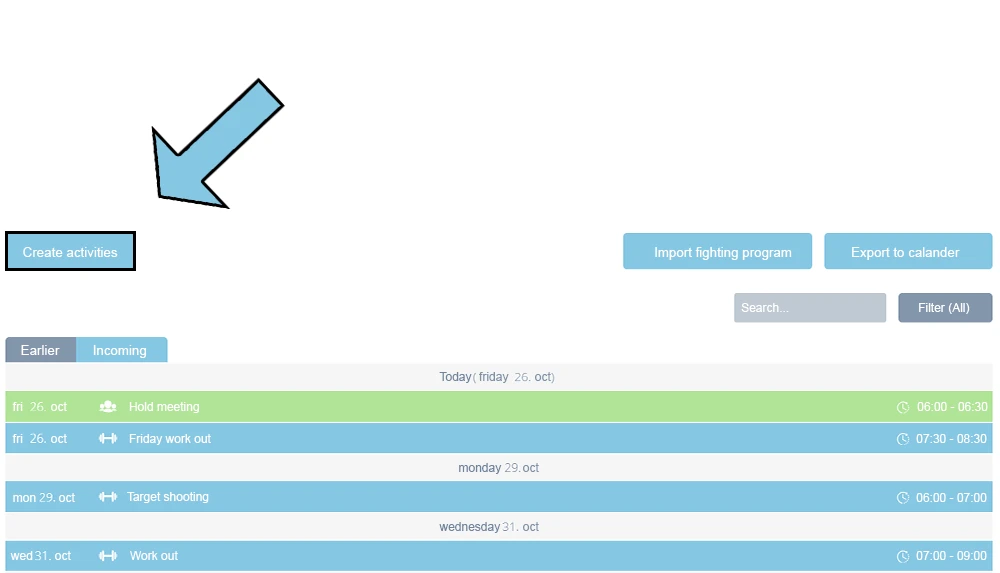
3. Choose which of the 5 types of activity you want to create.
4. Fill in the fields and navigate down to Repeat activity and press Don’t repeat .
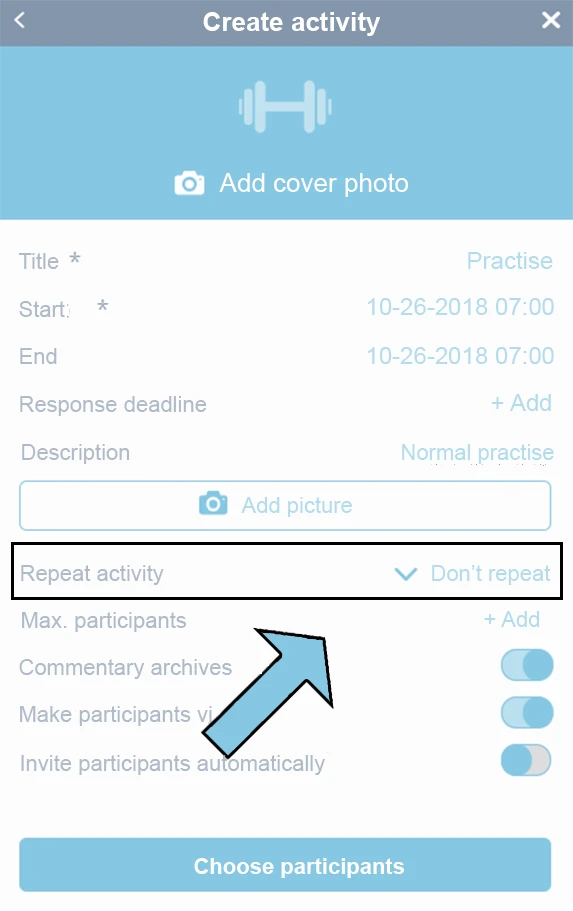
5. Choose whether the activity should be repeated every week or two.
6. When you have selected one of the two options, a new field called Repeat until appears . Here you have to choose when the repeated activity stops in the field below.
a
How do I create an activity?
You can create activities in the same way on the website as in our app, and with exactly the same functions.
- Once you have logged in to the website, tap Activities on the left side of the screen .
- Tap the Create Activity button at the top of the screen.
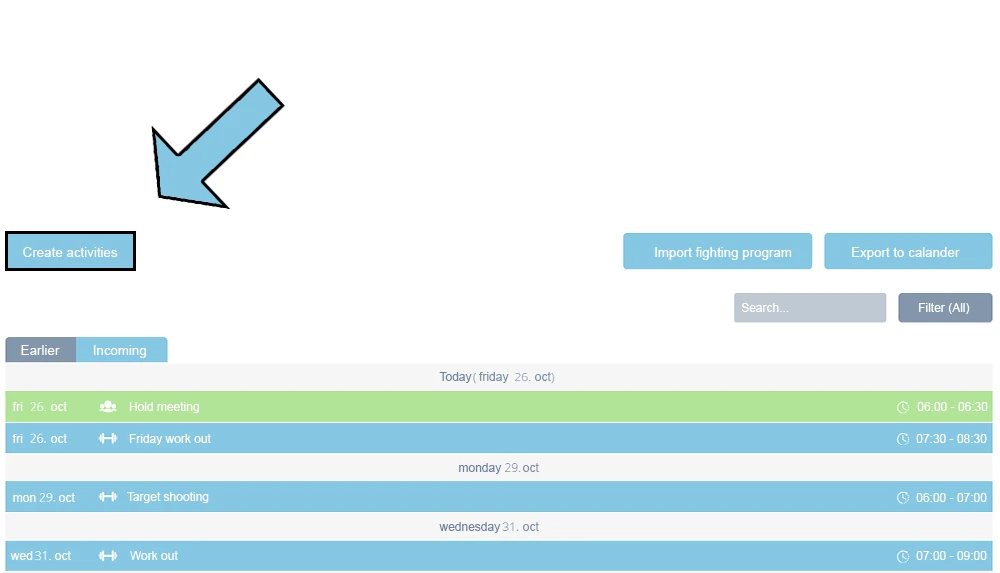
3. Select the type of activity you want to create and fill in the fields.
a
How do I grant a member rights to create activities?
As an Administrator, you can assign rights to members. For example, you can upgrade a Member to Group Leader. The member whether a coach, or instructor will be able to create activities and manage their group.
- Under the member overview on the web, the roles of all members can be seen in the hear page. Tap the role and select the desired role.
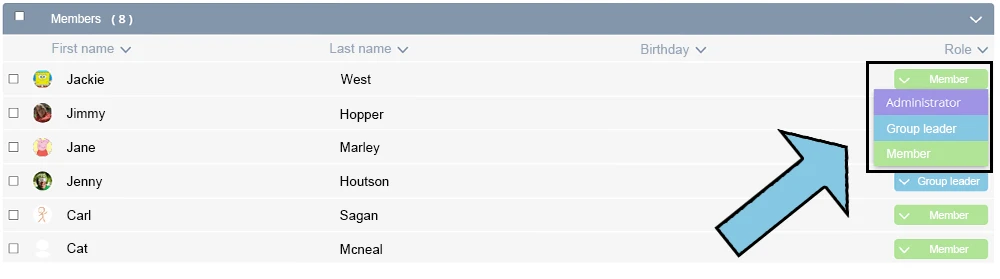
2. If you choose Group Leader, you must choose which groups the Group Leader must be able to manage and create activities for.
3. You can also manage members’ roles in the app. First press in the middle on the association’s activity wheel and then press “See all members”. Click on the pencil in front of the individual member and you can assign the role of either Group Leader or Administrator.
a
Why are there different roles?
There are three types of roles in MinForening that have associated different rights:
1) As an Administrator, you can in the app and on the web platform assign and remove roles. In addition, you can create, edit and remove all activities in your association.
2) As a Group Leader, you can create, edit and remove all activities in the group for which you are the group leader in the app and on the web platform.
3) As a Member, you can answer whether you participate or not, take on tasks and chat with the administrator, group leader and members.
a
Creation via link in invitation email
For “Create member” and “Import members”, members will be sent an invitation email. The email contains a link where the member can approve as a user in Wiandi. This can be done in the following ways:
- Firstly, they can use their own or the child’s e-mail address. If they change their mind, they can change the e-mail address by editing the user’s profile. See how to: https://wiandi.co.uk/support/?Display_FAQ=55479
- The parent can also always register as a user in the app and add a child to their own user, see guide: https://wiandi.co.uk/support/?Display_FAQ=55480
- If the parent and child are associated with the same e-mail address in the association, they can register as parent and child via the email link. However, a child is created under the parent’s e-mail address.
a
How do I approve a membership and group request from a member?
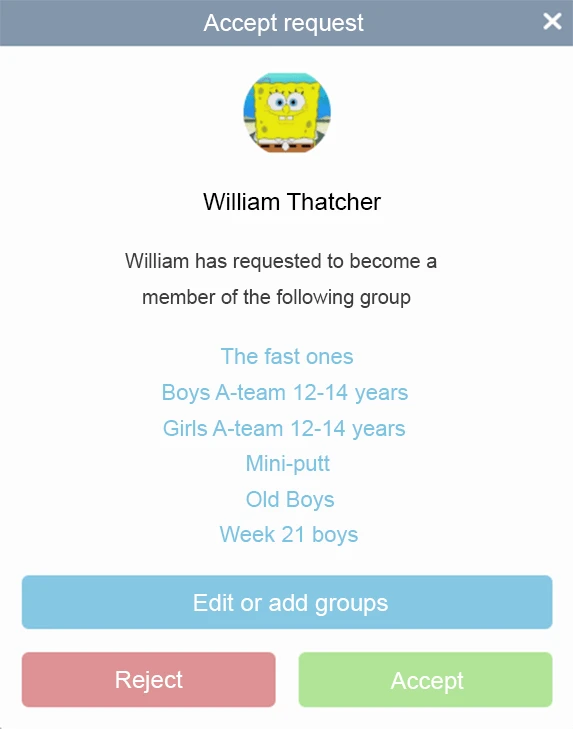
When members apply for membership in your association, they must be approved. First, the actual application for membership is approved and then to approve any. groups of which the member has applied for membership.
- Navigate to the left side of the screen and tap Members.
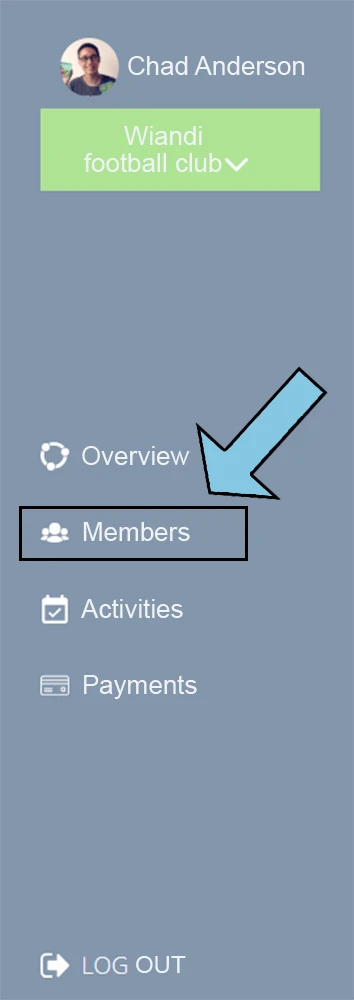
2. At the top of the screen you will see all association requests where you press Accept.
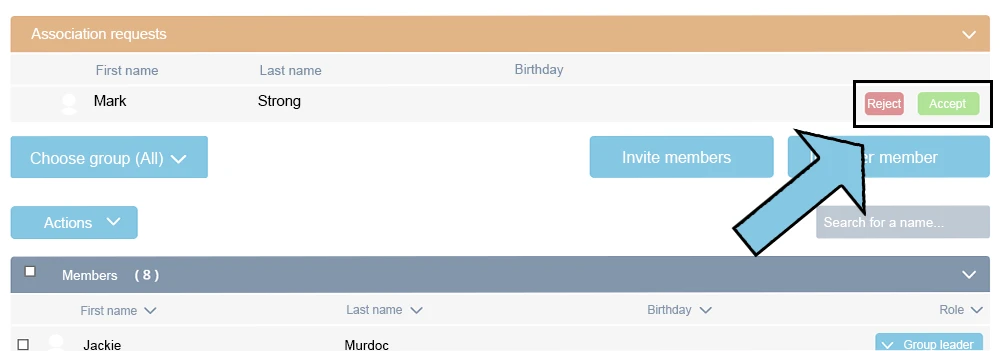
Once you have approved the request, you must approve any requests to groups from the member.
This is done by refreshing the page by either:
- Presssing away from Members e.g. go into Activities , and back to Members on the left side of the screen.
- Or press the refresh button in your browser, which can also be done with the F5 button on your keyboard.
After updating the members page, go back to members .
- At the top of the screen where you approved the request before, the group request is now displayed.
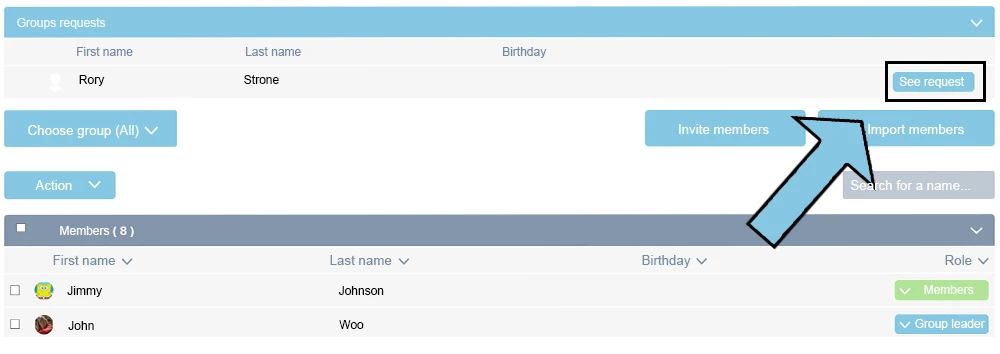
2. If you agree with the group that the person wants to be a member of, press the Accept button . If the person requests the wrong groups, then it can be edited through the Edit or Add Groups button .
a
How do I create a member?
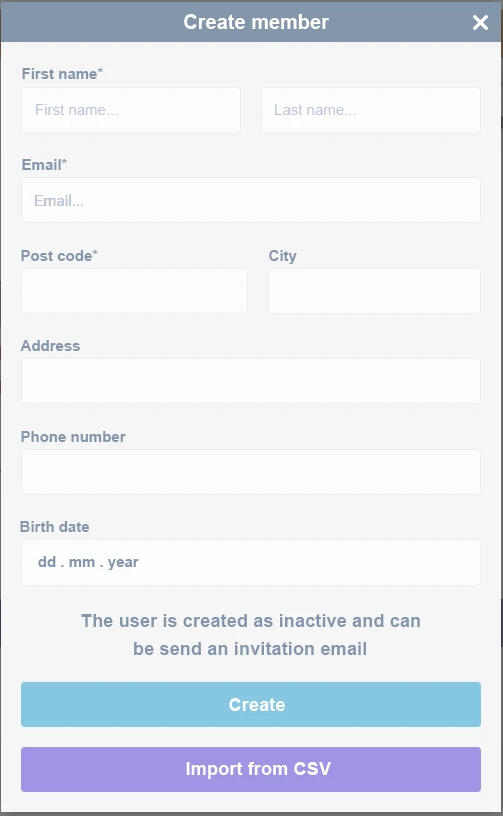
On the web, click on Members to create a new member. Afterwards, send an email inviting the member to the group.
You can make the new member a Group Leader or Administrator and add the member to groups. So, the member is automatically invited to activities, chat, messages and payments.
a
Language in app and on web
Wiandi has been translated into different languages on the web and in the app such as:
- English
- German
- Danish
However, you can contact us if you would like a specific language inserted.
a
Refund members who have regretted a GooglePay/ApplePay payment in the app
Through Wiandi, it is possible to return the amount to a member who has regretted his Mobile Pay payment. This must be within five days of the completion of the payment,
However, it requires that the association before the five days have passed send a request to [email protected] .
a
How do I charge for members who participate in an activity (booking)
To charge for members who participate in an activity (booking):
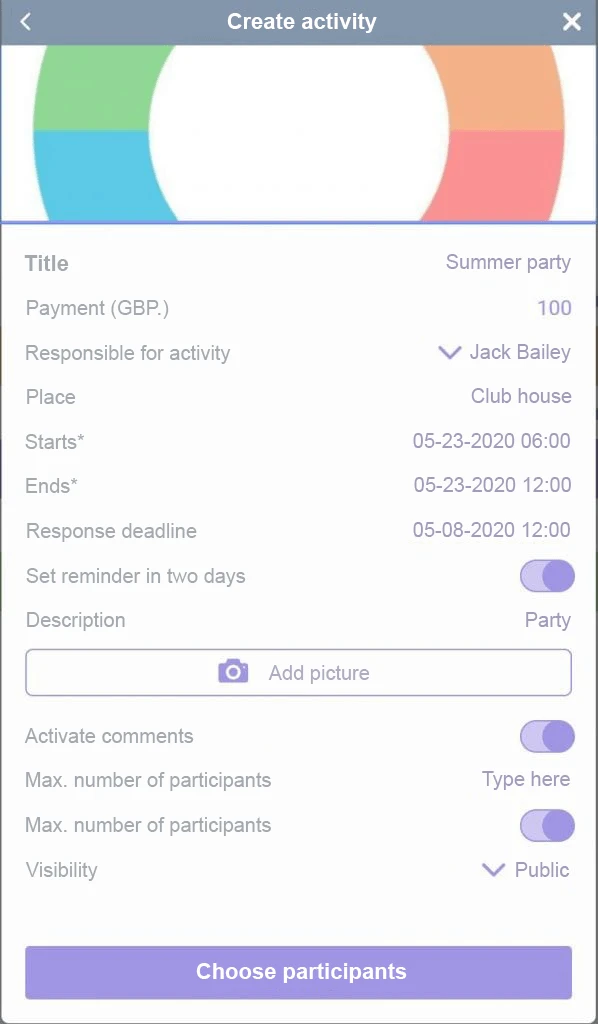
- First, create activity and enter amount.
- Secondly, set the start and end time for the activity and the response deadline.
- Thirdly, tap Create activity and invite group (s) or individuals to the activity.
- thereafter, members and parents pay easily via GooglePay or ApplePay integrated in the app when they tap Participate in the activity.
NB! Administrators and group leaders can make the activity payment a recurring activity and set the maximum number of participants . This makes the activity payment a weekly recurring booking that members can easily sign up for.
a
Charge differentiated quota
Collect differentiated membership fees by assigning tasks to members or parents in Wiandi’s activity module.
To collect a differentiated quota:
- Firstly, charge membership fee.
- Secondly, issue an additional charge for payment of additional membership fee.
- Thereafter, additional membership fee is returned to the member via GooglePay or ApplePay. This happens when the individual members or parents have done the agreed number of voluntary hours at the end of the season. You can read it in Wiandi’s membership module.
Note! Read more about assignment of tasks under the product description: Duty planning and management of volunteers .
a
Automatic collection of pro-rata subscription
Automatic collection of subscription payment prevents new members from joining an association or be on teams. This is because they have to make the full payment if they arrive in the middle or end of a subscription period.
The Reduced payment function can be activated when creating a membership fee or collecting a new member’s payment. With this, the payment period runs over several months or one season. However, if a member joins in the middle of a season, an amount corresponding to the rest of the season will automatically be charged.
Automatic collection of Reduced membership fee is calculated based on the remaining number of weeks in the subscription period. For instance, a new member who joins 5 weeks inside a payment period of 12 weeks. The new member will be charged automatically for the remaining 7 weeks.
Note! if you run as an association with a current subscription of e.g. 100 pounds a year, you no longer have to keep track of who signs up or in which months. A new member is automatically charged a reduced membership fee for the rest of the year. However, in a new season, the member is charged full membership fee as member of the association or club.
a
How do I collect payments and dues?
You can collect payments and dues on behalf of your association through the app. With this, the member can easily pay via GooglePay or ApplePay integrated in the Wiandi app or via External payment.
In the case of External payment, the member either transfers money to the association’s bank account or pays to the association’s own GooglePay or ApplePay shop.
Under Notifications / Payments in the app, members and parents have a comprehensive overview of upcoming payments and receipts for previous payments.
Imported members who have not registered as a user in Wiandi will receive emails about payment info instead of notifications in the app. Thus, they can only pay Externally.
For External payment, the cashier can reconcile the payments on the association’s bank account by approving the payments in Wiandi’s payment module.
Therefore, to create a payment or membership fee:
- Go to the left side of the screen and click under Payments .
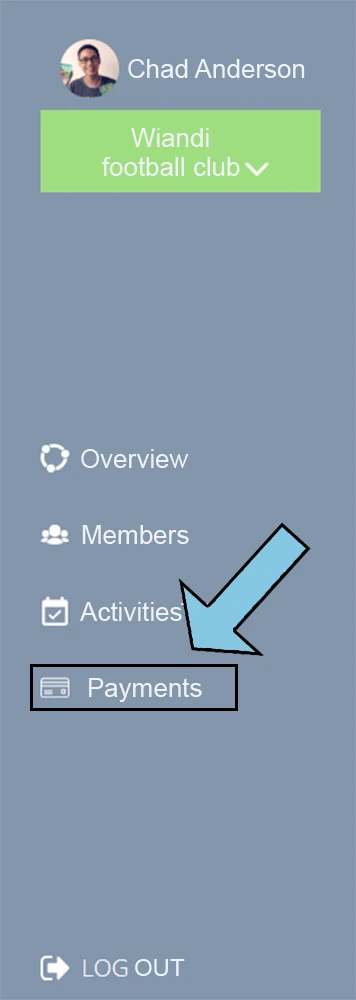
- To create a payment, tap Create Payment at the top right of the screen.
- Enter a title, price, payment period (start and end date), payment deadline, form of payment (GooglePay, applepay) and info for external payment. Then tap Select payers .
- Select Groups or Individuals according to who should have sent a payment collection and Create payment. Note! If new members are added to a group within the payment payment period, the member will automatically be sent a payment request.
- Once you have made a payment, you can send Reminders and enter Notes on. the individual member’s payment . Also, you can get an overview of who has paid and not paid. Members and parents can also post Comments when paying Externally.
- You can export the overview of the members’ payments to an Excel file. Afterwards, you can insert as an attachment in the association’s accounts.
a
What does Wiandi cost?
Wiandi is an app, web, and payment system that is 100% free.
We have been a part of clubs and associations ourselves, so we know every pound counts, which is why Wiandi is free of charge. Wiandi is financed through sponsorship with companies, who are passionate about the local businesses
Sponsorships works by having their logo briefly shown at the start of the app. After that, the app is totally free of any sponsors and ads. The user’s data is not sold to any third party, which is commonly known from social media platforms.
App
a
Team setting for matches
If you want to put the team to a match, you must individually invite the players in your gross squad. Then, you can individually remove the players who do not have to be on the team card. When a player is removed from the activity, they receive a notification that they have been removed from the activity. Also, the the activity will no longer to be found in the player’s activity wheel.
a
How to utilise groups?
As an administrator and group leader, you can create boards, committees and teams. However, when you create an activity, it is possible to invite one or more groups to that activity. Hence, if a member is added to the group, he or she is automatically invited to the group’s activities.
a
Deadline for responses and reminders in an activity
Invitees receive a reminder two days before a deadline in an activity.
But, if the deadline date is exceeded, the invitee can no longer register for the activity. A notification will be sent to the guest.
However, as an activity manager, you can always change the deadline date in an activity. This will allow the guest to sign up again.
For repeated activities, the deadline date is repeated based on the individual repeat activities. For example, a deadline date can be set to Tuesday at 2pm. So, on this day of the week and time a repeat reminder is issued for the next activity.
As activity manager, you can always edit the individual activity. This can put the response deadline in a repeat activity.
a
How do I set the maximum number of participants in an activity ( booking)?
When you create an activity, you can specify the maximum number of participants. As well as sets a limit on the number of participants in the activity. This allows you to create an activity that members can book on (booking).
See here how to create a weekly recurring activity with a maximum number of participants that members must pay to participate in (payment booking).
a
How do I view activities across Wiandi?
As a member, it is possible to bring together the associations or clubs that you are either a member of or that you follow under “Wiandi”. Hereby, you get a comprehensive overview of activities across clubs, associations, or communities.
a
How do I change the colour/type of an activity?
It is not possible to change the colour code of an activities. However, you can there is a way to change which is by removing the activity and creating a new one.
https://wiandi.co.uk/support/?Display_FAQ=55525
a
I cannot find an activity in my activity wheel
There are some activities in the club’s, NGO’s or association’s activity wheel that you can’t find in yours or your child’s Activity Wheel. It is because you or your child is not invited to that activity.
The activity wheel shows 30 days or 30 activities in the future. While, activities that are further into the future can be seen under the Activity List on the left side under the Activity Wheel.
- Go down to Activities on the left side at the bottom. Then, tap the three horizontal lines.
- Here, you will get an overview of all upcoming and previous activities.
https://wiandi.co.uk/support/?Display_FAQ=55522
a
How do I delete an activity?
If an activity is to be cancelled and therefore deleted:
- First, tap the activity through the activity wheel or through the activity list.
- Second, tap the pencil at the top right side of the screen.
- Thirdly, at the bottom, press the text Cancel activity.
- Hence, the activity is deleted from all activity wheels of the people who have been invited to participate. Also, Repeat Activity gives you a message to decide whether to delete all activities or only the individual.
Note! All invitees to an activity are notified that the activity has been canceled.
Tip! Instead of cancelling an activity, you can also change the heading to “CANCELLED + title of activity”. This sends the invited participants a notification.
Direct link
a
How do I create weekly repetitive activities?
If your team is training on the same day each week, it is possible to create repetitive activities. You create one activity that is copied to future weeks and stop on the date you specify.
- Under the activity wheel, tap Create Activity (Wiandi logo with + in the middle).
- Select a club/association in which you want to create an activity, and then select color code. Kindly note that Training, tournament, event, etc. is indicative and does not appear when the activity is created.
- After you fill in the fields with the title, time, location, and description, tap More Options, which is further down the screen.
- Here you will find Repeat Activity as the first option. Press the Do Not Repeat button, and from the drop-down menu you choose whether to repeat it every week or every two weeks.
- It is important that repeat activity sets a date for how long the activity should be repeated under Repeat until.
a
How do I see my family’s activities in a shared activity wheel?
During My/Our activities, you can access your activities and your family’s activities in a joint activity wheel.
- To see you or your child’s activity wheel go to My/Our activities in the top of the screen
- Here you have the opportunity to choose between your own children’s and or partner’s activity wheel.
- You can also select “Our Activities”, which brings together all activity wheels in a common activity wheel that shows the whole family’s activities across associations and teams.
a
Why can’t our members indicate whether they want to participate or not?
Your members cannot specify whether they are participating or not in an activity. It is probably because they’re not invited to that activity. So, you must add the member to the invited group. You can also invite the group that the person is a member of.
a
How do I share my activities with my calendar?
You can easily share your activities from Wiandi to a calendar, e.g. on your phone or computer.
- Tap activities at the bottom of your screen.
- Tap in the center of the activity wheel to get into your profile.
3. Then tap the gear at the top right corner of the screen.
4. Now a new window opens with three blue boxes appearing at the bottom, here you must select “share calendar”.
5. If you are on an iPhone, the calendar will be shared directly. If you are on an Android device, follow the guide that pops up.
6. The first thing you do is to sign sign in to your Google calendar on your PC. then you add a new calendar URL. To do this, press add calendar on the three dots.
7. Now a window pops up that says FROM URL. You press FROM URL and you need to import the link from your phone. Then you press Add Calender. Your Wiandi activities are now shared with your Google Calendar.
a
I can’t create activities, what should I do?
As a member, you cannot create activities. Thus, an administrator has to make you as either a team leader or administrator in order to create activities.
a
How can I create an activity?
As an administrator or team leader, you can create an activity in Wiandi.
- First, tap activities at the bottom of your screen.
- Then tap the round “+” on the right side of your screen.
- You will now be directed to your association overview where you will select the association in which you want the activity to be created.
- Once you have chosen the association, you must now choose what form your activity takes, whether it is a work out, a meeting, or an event.
- After you select the activity type, fill in your information.
- Then press the blue button at the bottom of your “create activity” screen.
- Now you can invite your members to the activity and they can then tap whether they’re participating or not.
a
Insert link to the club’s or association’s document in Wiandi
You can insert a link to document in your file sharing system such as G-drive, OneDrive and DropBox.
Link sharing makes it easy for members to access the association’s documents . As an administrator, you can do an activity description, personal chat, group chat, messages. As well as in the club’s or association’s description.
a
Why are there different roles?
There are three types of roles in Wiandi that have associated different rights:
1) Firstly, as an Administrator , you can log into the app and on the web platform assign and remove roles. As well as create, edit and remove all activities in your association.
2) Secondly, as a Group Leader , you can create, edit and remove all activities in the group for which you are the group leader in the app and on the web platform.
3) Also, as a Member , you can answer whether you participate or not, take on tasks and chat with the administrator, group leader and members.
a
How do I request membership of a group?
To request or on behalf of your children to join a group:
Find the club, association or NGO group by pressing in the middle of the association’s activity wheel.
inside the club’s or association’s membership and Group list, tap “See all groups” and find the group you’d like to request membership in.
Inside the group, you or on behalf of your children can request membership of the group.
https://wiandi.co.uk/support/?Display_FAQ=56737
a
How do I change the master information about Wiandi?
You can add and change information about your association at any time.
- Go to Associations at the bottom of the screen and tap Show Association in the center of the activity wheel.
- Press gears in the top right.
- Here you can change all information about your association e.g. association name, address, phone number or website.
a
How do I invite members to Wiandi?
You can use an invitation link to invite new members to your association.
- Go to Associations/club at the bottom of the screen and tap in the middle of the association’s activity wheel.
- Under Members, there is a green button called Invite Members.
- Copy an invitation link that you can insert into an email, text message, or social media. Thereafter, send to the people you want to invite.
- Finally, When the person taps the link, the person can request membership themselves in the groups that they would like to be a member of. If the person does not have a user, the person will be guided through the creation process for new users.
a
How do I add members to a group?
Under Group, you can easily add more people to each group.
- Go to Associations at the bottom of the screen and tap See Association in the center of the activity wheel.
2. Tap See All Groups for an overview of groups and subgroups, as well as to see the number of members in each group.
3. Tap the group you want to add people to.
4. Next, invite members into your group by tapping Add Members. Then, select all those who are going into the group. After you select the members, you’ll finish by tapping Add Members at the bottom of the screen.
a
How do I set up boards, committees and teams as groups in Wiandi
Under Groups, you can easily create your association’s board, committee, or team
- Go to Associations at the bottom of the screen and tap See Association in the center of the activity wheel.
2. Tap See All Groups for an overview of groups and subgroups, as well as to see the number of members in each group.
3. Tap Create Group and type the name of the group.
4. Finally, invite members into your group by tapping Add Members, and selecting all those who are going into the group. After you select the members, you’ll finish by tapping Add Members at the bottom of the screen.
a
How do I create an association/club/community
In connection with signing up as a user or at a later date, you can create all the associations, clubs and teams that you would like.
- Go to Associations at the bottom of the screen and then tap the association name at the top of the screen.
- Then, at the bottom of +Add Association, press the Create Association button.
a
How do I request membership in an association/club/community
You can request membership of an association on behalf of yourself or your child.
- Go to Associations at the bottom of the screen and then tap the association name at the top of the screen.
- Then press the bottom of +Add Association.
- Then tap Search for Association.
- In the search box, type the name of the association, and then tap the association.
- Now you can request association membership by pressing the Request membership button.
- Here you can select an administrator or group leader to send your request to. You can also select No Contact, and your request will be sent to the association’s administrators for approval.
- Finally, you choose which groups you’d like to be a member of.
https://wiandi.co.uk/support/?Display_FAQ=55495
a
I can’t add/remove members to/from groups, what should I do?
Only Group manager or administrator can move members in and out of groups. So, as an administrator, you have the right to make a member a team leader or administrator. Hence, enable them to manage their own groups and create activities.
https://wiandi.co.uk/support/?Display_FAQ=55493
a
How do I request membership in an association/club/community
You can request membership of an association on behalf of yourself or your child.
- Go to Associations at the bottom of the screen and then tap the association name at the top of the screen.
- Then press the bottom of +Add Association.
- Then tap Search for association.
- In the search box, type the name of the association, and then tap the association.
- Now you can request association membership by pressing the Request membership button.
- Here you can select an administrator or group leader to send your request to. You can also select No Contact, and your request will be sent to the association’s administrators for approval.
- Finally, you choose which groups you’d like to be a member of.
a
How do I request membership of a group?
To request or on behalf of your children to join a group:
Find the association groups by pressing in the middle of the association’s activity wheel.
Once you’re inside the association’s membership and Group list, tap “See all groups” and find the group you’d like to request membership in.
Inside the group, you or on behalf of your children can request membership of the group.
a
How do I delete my user?
You delete your user by sending us an email on [email protected]. Then we will delete your user from the server.
a
How do I apply for membership of an association on behalf of my child?
Press into the center of the association’s activity wheel.
Then press Request, after which you can request membership of the association on behalf of your child.
a
Email already in use
Firstly, you have tried to register in the app and see the message “Email already in use”. Receive a new code by entering your email address in “Forgot code”.
Secondly, you can also receive the message “Email already in use”, if you have already received an invitation email from your association via Wiandi. However, you must use the link in the invitation email to register as a user in Wiandi. Afterwards which you can log in to the app.
Note! By the way, your association can always send you a new invitation email if you cannot find the email in your inbox.
a
How do I upgrade a child to an independent self user?
If you as a parent have a child associated with your own user profile, you can upgrade your child to a self user. Use a profile associated with the child’s email address without losing the parent relationship.
- First, tap in under View profile in the middle of your child’s activity wheel.
- Second, tap nut at the top right to edit the child’s profile.
- Third, tap the green bar at the bottom Upgrade profile.
- Then, enter the child’s email address and code.
- Finally, complete the setup by pressing Upgrade Profile.
Go to How do I see a common activity wheel over all my users?
Go to How do I associate child with my user?
https://wiandi.co.uk/support/?Display_FAQ=57264
a
How do I approve a parent’s/follower’s request
The request must be approved by the child, another parent or the person the request has been sent to:
- Tap the notification in notifications to approve the request (Alternatively, go under Activities and tap your name at the top of the screen, and at the bottom press +Add Person).
2. Then you come under My Family, where you press the pencil to approve the request.
3. The child/person must be a member of an association before it can approve your request.
Go to How do I see a common activity wheel over all my users?
a
How do I find user ID on my child
To follow/add a child or person, use their User ID.
- At the far left of the bottom of the screen, select the Activities button to see your activity wheel. Then tap View Profile in the center of your activity wheel.
- Press the gear at the top right corner.
- User ID is the third item in the list.
Go to How do I approve a parent/follower’s request? Go to How do I see a common activity wheel over all my users?
a
How do I associate a child with my user?
When you associate a child with your user, you as a parent can manage activities on behalf of your child. You can also choose to follow a child and simply get an overview of your child’s activities.
As a Parent
- Go to your activity wheel at the far left of the screen.
- Then, tap your name at the top of the screen and a new page will opens up.
3. At the bottom of the page, press the +Add Person.
4. At the bottom, Follow your activities, Create child, and Follow and manage child buttons.
Follow others activities: Here, you can get an overview of your partner’s or others activities.
5. Create child: In addition, You can manage activities for a child who is associated with your user profile.
- Press the center of the association’s activity wheel.
- Then, tap Request and you can apply for membership of the association on behalf of your child.
Go to How do I find User ID on my child or a my user?
Go to How do I approve a parent/follower’s request?
Go to How do I see a common activity wheel over all my users?
Go to How do I upgrade child to self-user?
a
How do I change my user information?
You can edit your user information at any time if you need to change or add information to your user profile.
- At the far left of the bottom of the screen, select the Activities button to see your activity wheel. Then tap View Profile in the center of your activity wheel.
2. Tap the gear at the top right of the screen.
Here you can edit your user profile, change your password, and link your activities to your mobile calendar.
a
How do I change my password?
You can change your password at any time under your profile information.
- Navigate to your activity wheel, which is located to the far left at the bottom of the screen.
- Then tap View Profile which is in the middle of your activity wheel.
- Tap the gear at the top right corner of the screen.
- Then tap the Change Password button.
https://minforening.dk/support/?Display_FAQ=55475
a
What if I forgot my password?
If you forgot your password, then tap Forgot the code? in the log-in screen of the app.
- Here you enter the email address associated with your user. You will receive shortly after an email from Wiandi.
- When you tap the link that’s in the email, you’ll be asked to enter your new password.
- You can now sign in with your user with your new password.
A
What does Wiandi cost?
Wiandi is an app, web, and payment system that is 100% free.
We have been a part of clubs and associations ourselves, so we know every pound counts, which is why Wiandi is free of charge. Wiandi is financed through sponsorship with companies, who are passionate about the local businesses
Sponsorships works by having their logo briefly shown at the start of the app. After that, the app is totally free of any sponsors and ads. The user’s data is not sold to any third party, which is commonly known from social media platforms.
a
Language in app and on web
Wiandi has been translated into different languages on the web and in the app such as:
- English
- German
- Danish
However, you can contact us if you would like a specific language inserted.
a
How do I delete a chat
Chats with people who have not been active for 30 days will be removed from your chat history. They are thus not deleted, allowing you to always access old chats by re-creating the chat with the person.
Group chats are not removed, but are deleted when you delete the group.
a
How do I turn on/off notifications from a chat?
To turn notifications on or off in instant messaging, do the following:
- Tap “chat” at the bottom of the screen.
- Then press the “chat” you want notifications from.
- Once inside the chat, click on the clock in the top right corner.
- Now a field pops up “turn off notifications in this chat” after which you press yes or no.
a
Use personal chat to discuss themes
The board typically uses the group chat for board talk. However, the board can have a personal chat running to discuss various topics.
In the person chat, you can continuously add and remove people as well as change the theme by changing the title of the chat, which is displayed in the chat overview. For example. “Planning a trip” or “Gift for Rita”.
You thus create chat, invite people and edit the title of your chat.
a
How does chat work?
The chat is straightforward:
Personal chat : You can create a chat or chat individually with all members of yours or your child’s association.
Group chat : Also, you can create chat and chat with the group of which you or your child is a member.
NB! New members of a group are automatically added to the group chat. Likewise, they are automatically removed from the group chat if they are removed from a group.
NB! Even if you are an Administrator, you can only create or chat with the groups of which you are a part.
a
Sharing files and documents
f you want to share the association’s files from G-drive , Dropbox or OneDrive , simply insert a link in the Description or Comment track during the activity. Of course, you can also insert your links in the chat.
See these blog posts for document management and structuring the association’s documents:
https://wiandi.co.uk/4-pieces-of-advice-for-handling-documents/
a
My camera is not working
Your camera might go black when you want to take a photo in Wiandi. Under Settings in your mobile, find the Wiandi app to turn on Camera.
https://wiandi.co.uk/support/?Display_FAQ=55522
a
Where can I download Wiandi?
Wiandi is available on both iOS and Android. It can be downloaded from the App Store and Google Play.
Web
a
Will all imported members be notified of activities?
Yes. Imported members who are sent an invitation email but have not signed up as a user in Wiandi. The email has information about the activities they or their group are invited to. Thus, they receive emails when invited or requested to join an activity. In addition, they get emails with Messages and quota collection.
Furthermore, imported members who have not been sent an invitation email will not receive emails about invitation. Hence there is time to plan and create activities before inviting the imported members to register as a user in Wiandi.
On the Wiandi web, imported members status is Inactive. This is colored red or orange. However this depends on whether they have received invitational email from the association. This will allow them sign up via link as a user in Wiandi.
a
Team setting for matches
If you want to put the team to a match, you must individually invite the players in your gross squad under Persons. Then you can remove the players who are not on the team card. When a player is removed from the activity, they receive a notification that they have been removed from the activity. Afterwards, the activity is no longer found in the player’s activity wheel.
a
How are groups used?
As an administrator and group leader, you can create boards, committees, and teams under Groups. Thus, when you create an activity, it is possible to invite one or more groups. If a member is added to the group, they are automatically invited to the group’s activities.
a
How do I delete an activity?
If you want to delete an activity e.g. if training is cancelled. Do so by:
- Sign in to the website and tap Activities.
- Tap the activity that you want to delete. A window opens and you press the Delete button.
If it is a repetitive activity, you can delete or change only one activity. For instance, if the workout is cancelled or moved to another time. Also, you can delete and change all repeating activities.
Note! If an activity is cancelled, all invitees are notified about the change.
Tip! Instead of cancelling an activity, you can also change the heading to “CANCELLED + title of activity”. This will give the invited participants a notification to that effect.
a
How to edit an activity
You can change your activities at any time if there are changes or errors in the activity.
- Firstly, Log on to the website and navigate over the left side of the screen and tap Activities.
2. Secondly, Tap the activity you want to change. A window opens and you press the Edit button.
3. Be sure to tap Save Changes when you’re done editing the activity.
As seen in the image above, you have the option to edit all activities.
If the activity is a repetitive activity, then it is possible to edit them all, or just the one that you just corrected, if e.g. the workout moves to another time.
a
Response time and Reminders in an activity
Response deadline in an activity allows invitees to receive a reminder two days before the response deadline.
If the response deadline is exceeded, the guests will receive a notification. This states that the guests can no longer register for the activity.
However, as an activity manager, you can always change the response deadline in an activity. This allows guests to sign up for the activity again.
For repeated activities, the response deadline is repeated based on the individual repeat activities. For instance, you can set a response deadline set in a repeat activity to Tuesday at 2pm. Therefore, on this day of the week and time a reminder is issued for the next activity.
As activity manager, you can edit an activity as well as the response deadline in a repeat activity.
link
a
How do I set the maximum number of participants in an activity(booking)
When you create an activity, you can specify the maximum number of participants. This sets a limit on the number of participants in the activity. This allows you to create an activity that members can book on (booking).
See here . How to create a weekly recurring activity with a maximum number of participants that members must pay to participate in (payment booking).
a
How to do a repetitive activity?
Just like in our app, it is also possible to create repetitive activities through our website.
- Once logged in to the website, navigate to the left side of the screen and tap Activities.
2. Tap the Create Activity button at the top of the screen.
3. Choose which of the 5 types of activity you want to create.
4. Fill in the fields and navigate down to Repeat activity and press Don’t repeat .
5. Choose whether the activity should be repeated every week or two.
6. When you have selected one of the two options, a new field called Repeat until appears . Here you have to choose when the repeated activity stops in the field below.
a
How do I create an activity?
You can create activities in the same way on the website as in our app, and with exactly the same functions.
- Once you have logged in to the website, tap Activities on the left side of the screen .
- Tap the Create Activity button at the top of the screen.
3. Select the type of activity you want to create and fill in the fields.
a
How do I delete a club or association?
It is not possible to delete an association yourself. However, as an administrator you can have your association deleted by sending an email to [email protected]
a
Change association name and information
You can edit the name and information of your association under Settings on the web.
Of course, it is also possible to edit the association name and information in the app. Firstly, press the centre of the association’s activity wheel. Then press the nut on the right side to edit the association’s information.
a
How do you create a multi-branch association?
Create separate activity wheels if you are multi-branch association with different association accounts and treasurer associated with each department.
Each department will thus have its own activity wheel, giving a unique overview of its activities.
Although you as a multi-branch association have created separate activity wheels for each department, the app allows you to assemble the sections’ activity wheels into a common activity wheel. This gives you a comprehensive overview of all the activities across departments, see more here.
See also here how to export the association’s activities to the association’s website.
If you want help with setting up a multi-branch association, please contact us here.
a
How do I create a multi-prolonged association?
For a multi-pronged association, it may be advantageous to create activity wheels for the individual departments, e.g. VBI Handball, VBI Football, VBI Volley, etc.
Thus, it is possible for each member of the Wiandi app to bring together the associations of which you are a member. Also the one you follows can be under a single activity wheel. This gives a comprehensive overview of the activities of a multi-pronged association.
a
How do I create another association?
You can create any association that you want. Wiandi is used by all types of communities such as families, networks, organizations, NGO, and associations.
If you are a member of several associations, you will find your activities across your associations in your personal activity wheel in Wiandi. Read more here.
However, you can also combine all your associations into a common activity wheel, so you get a comprehensive overview of your associations’ activities. Read more here.
If you are a multi-branch association, the different departments can have their own activity.
See the guide below to see how an Administrator creates another association in Wiandi:
- Firstly, Navigate to the top of the navigation bar on the left side of the screen. Press the green button with your association name.
2. At the bottom, press Create Association.
3. Then, you fill in the fields and end by pressing the Create Association button.
a
How do I create a club or association?
Once you have made a user and logged in, you can easily create your own association. By doing the following:
- Sign in with your user or create a new user.
- Navigate to the left side of the screen and press the green Create Association button.
- Fill in the fields and you are in the process of your newly created association.
The advantage of managing your association on our website is that you have a larger screen available and that gives more overview of your association.
a
How do I Share the the association’s activities with a calendar?
Export calendar iCal-file from Wiandi
- Firstly, go to http://web.wiandi.co.uk and sign in with your Wiandi user.
- Secondly, choose your association from the left menu.
- Thirdly, tap “Activities” on the left menu
- Then tap “Export to Calendar” in the right corner, you now receive an iCal file named “ical.ics”
iCal file can be imported into a variety of calendars (e.g. Google Calendar and Apple Calendar).
We recommend importing the iCal file into a Google Calendar if you want to insert it on your website.
Import iCal-file from Google Calendar
- Go to https://calendar.google.com/
- If you don’t already have a Google Account, create one and sign in
- On the left menu, tap “+” and select “New Calendar”
- Enter name and description if necessary (name may be your association name, for example), then tap “Create calendar”
- Tap “Import and Export” on the left menu
- Under your computer’s Transfers, tap “Choose file from computer” and under your computer’s Transfers, select the iCal file that you exported from Wiandi
- Be sure that the “Add to Calendar” field is set to the calendar you just created
- Tap “Import”
- Finally, Press the back arrow in the upper-left corner
Now, you should be able to see all your association’s Wiandi activities in the calendar. Therefore, future activities added to Wiandi will now be automatically imported into the Google Calendar.
To insert the calendar on the association’s website, read the following guide:
How do I insert an activity list on the association’s website?
a
How do I grant a member rights to create activities?
As an Administrator, you can assign rights to members. For example, you can upgrade a Member to Group Leader. The member whether a coach, or instructor will be able to create activities and manage their group.
- Under the member overview on the web, the roles of all members can be seen in the hear page. Tap the role and select the desired role.
2. If you choose Group Leader, you must choose which groups the Group Leader must be able to manage and create activities for.
3. You can also manage members’ roles in the app. First press in the middle on the association’s activity wheel and then press “See all members”. Click on the pencil in front of the individual member and you can assign the role of either Group Leader or Administrator.
a
Why are there different roles?
There are three types of roles in MinForening that have associated different rights:
1) As an Administrator, you can in the app and on the web platform assign and remove roles. In addition, you can create, edit and remove all activities in your association.
2) As a Group Leader, you can create, edit and remove all activities in the group for which you are the group leader in the app and on the web platform.
3) As a Member, you can answer whether you participate or not, take on tasks and chat with the administrator, group leader and members.
a
How do I delete my user?
You delete your user by sending us an email on [email protected]. Then we will delete your user from the server.
a
Ticking newsletter and consent statement when adding members
Members can check boxes, such as receiving the association’s newsletter or consenting to the use of images on social media. Therefore, you can integrate Mailmunch into the association’s website and Wiandi’s invitation link. This makes it easy to send out newsletters. Furthermore, you get an overview of members’ consent statements and is relatively easy to set up.
a
How do I merge my first name and last name into the Name (Import members) column?
In your downloaded CSV Import Template, use the following code to merge the first name and last name into the column ‘name’: =H2&” “&I2
Approach:
- Firstly, Insert the code in column B.
- Secondly, Insert first name in column H
- Then Insert last name in column I.
Note! The code can be dragged from the lower-right corner over the number of cells that you have number of members.
a
Creation via link in invitation email
For “Create member” and “Import members”, members will be sent an invitation email. The email contains a link where the member can approve as a user in Wiandi. This can be done in the following ways:
- Firstly, they can use their own or the child’s e-mail address. If they change their mind, they can change the e-mail address by editing the user’s profile. See how to: https://wiandi.co.uk/support/?Display_FAQ=55479
- The parent can also always register as a user in the app and add a child to their own user, see guide: https://wiandi.co.uk/support/?Display_FAQ=55480
- If the parent and child are associated with the same e-mail address in the association, they can register as parent and child via the email link. However, a child is created under the parent’s e-mail address.
a
How do I approve a membership and group request from a member?
When members apply for membership in your association, they must be approved. First, the actual application for membership is approved and then to approve any. groups of which the member has applied for membership.
- Navigate to the left side of the screen and tap Members.
2. At the top of the screen you will see all association requests where you press Accept.
Once you have approved the request, you must approve any requests to groups from the member.
This is done by refreshing the page by either:
- Presssing away from Members e.g. go into Activities , and back to Members on the left side of the screen.
- Or press the refresh button in your browser, which can also be done with the F5 button on your keyboard.
After updating the members page, go back to members .
- At the top of the screen where you approved the request before, the group request is now displayed.
2. If you agree with the group that the person wants to be a member of, press the Accept button . If the person requests the wrong groups, then it can be edited through the Edit or Add Groups button .
a
How do I create a member?
On the web, click on Members to create a new member. Afterwards, send an email inviting the member to the group.
You can make the new member a Group Leader or Administrator and add the member to groups. So, the member is automatically invited to activities, chat, messages and payments.
a
How do I create ongoing payments
In Members, you can create the fees group. Also, you can create subgroups with the months of the year. See the picture below.
For instance, you can create a payment entitled ‘January 2019 contingent’. With this, the subgroup ‘January’ is invited. Remember to set the payment period for the whole month of January. see guide here.
Furthermore, when you have new members in your association, you can add new members in the appropriate subgroup. They are automatically charged for the payment of annual fees.
Note! You can also use the Reduced Payment function, whereby new members are automatically charged the quota applicable for the remainder of the quota period, see guide here.
a
Refund members who have regretted a GooglePay/ApplePay payment in the app
Through Wiandi, it is possible to return the amount to a member who has regretted his Mobile Pay payment. This must be within five days of the completion of the payment,
However, it requires that the association before the five days have passed send a request to [email protected] .
a
How do I charge for members who participate in an activity (booking)
To charge for members who participate in an activity (booking):
- First, create activity and enter amount.
- Secondly, set the start and end time for the activity and the response deadline.
- Thirdly, tap Create activity and invite group (s) or individuals to the activity.
- thereafter, members and parents pay easily via GooglePay or ApplePay integrated in the app when they tap Participate in the activity.
NB! Administrators and group leaders can make the activity payment a recurring activity and set the maximum number of participants . This makes the activity payment a weekly recurring booking that members can easily sign up for.
a
Charge differentiated quota
Collect differentiated membership fees by assigning tasks to members or parents in Wiandi’s activity module.
To collect a differentiated quota:
- Firstly, charge membership fee.
- Secondly, issue an additional charge for payment of additional membership fee.
- Thereafter, additional membership fee is returned to the member via GooglePay or ApplePay. This happens when the individual members or parents have done the agreed number of voluntary hours at the end of the season. You can read it in Wiandi’s membership module.
Note! Read more about assignment of tasks under the product description: Duty planning and management of volunteers .
a
Automatic collection of pro-rata subscription
Automatic collection of subscription payment prevents new members from joining an association or be on teams. This is because they have to make the full payment if they arrive in the middle or end of a subscription period.
The Reduced payment function can be activated when creating a membership fee or collecting a new member’s payment. With this, the payment period runs over several months or one season. However, if a member joins in the middle of a season, an amount corresponding to the rest of the season will automatically be charged.
Automatic collection of Reduced membership fee is calculated based on the remaining number of weeks in the subscription period. For instance, a new member who joins 5 weeks inside a payment period of 12 weeks. The new member will be charged automatically for the remaining 7 weeks.
Note! if you run as an association with a current subscription of e.g. 100 pounds a year, you no longer have to keep track of who signs up or in which months. A new member is automatically charged a reduced membership fee for the rest of the year. However, in a new season, the member is charged full membership fee as member of the association or club.
a
How do I collect payments and dues?
You can collect payments and dues on behalf of your association through the app. With this, the member can easily pay via GooglePay or ApplePay integrated in the Wiandi app or via External payment.
In the case of External payment, the member either transfers money to the association’s bank account or pays to the association’s own GooglePay or ApplePay shop.
Under Notifications / Payments in the app, members and parents have a comprehensive overview of upcoming payments and receipts for previous payments.
Imported members who have not registered as a user in Wiandi will receive emails about payment info instead of notifications in the app. Thus, they can only pay Externally.
For External payment, the cashier can reconcile the payments on the association’s bank account by approving the payments in Wiandi’s payment module.
Therefore, to create a payment or membership fee:
- Go to the left side of the screen and click under Payments .
- To create a payment, tap Create Payment at the top right of the screen.
- Enter a title, price, payment period (start and end date), payment deadline, form of payment (GooglePay, applepay) and info for external payment. Then tap Select payers .
- Select Groups or Individuals according to who should have sent a payment collection and Create payment. Note! If new members are added to a group within the payment payment period, the member will automatically be sent a payment request.
- Once you have made a payment, you can send Reminders and enter Notes on. the individual member’s payment . Also, you can get an overview of who has paid and not paid. Members and parents can also post Comments when paying Externally.
- You can export the overview of the members’ payments to an Excel file. Afterwards, you can insert as an attachment in the association’s accounts.
a
Sharing files and documents
You can share the association’s files from G drive, Dropbox, or OneDrive. Simply insert a link in the Description or Comment Trail during the activity. Of course, you can also insert your links into the chat.
See these blog posts for document management and structuring the association’s documents:
a
Language in app and on web
Wiandi has been translated into different languages on the web and in the app such as:
- English
- German
- Danish
However, you can contact us if you would like a specific language inserted.
a
Use templates for ordering food, clothing, accomodation etc.
Insert link to template in an activity description so that participants can order food, clothing, accommodation, etc.
See the following examples as inspiration:
Food ordering – 1 person: https://forms.gle/5WdvBu4ieQ3bHwe38
Food ordering – family: https://forms.gle/6rcYnm5WvYQQyFGVA
Clothing order – 1 person: https://forms.gle/mGNXtHu56LsT47NX6
Clothing order – family: https://forms.gle/8odnHFd75JYYSUGeA
Accommodation – 1 person: https://forms.gle/SWWgPxYMLEGa5i6h7
Accommodation – family: https://forms.gle/3a6P652sYo2Mnoz36
Existing templates in Google Forms:
Ordering: Order Form
Clothing order: T-shirts Sign Up
Get feedback on your event: Event Feedback
Activity evaluation: Exit ticket
Evaluation of season: Course Evaluation
Find meeting time: Find a Time
Quiz: Blank quiz (Kahoot)
Tips and tricks in creating Google Form:
- Go to Settings/General: Remove the check mark from “Requires sign in” so that everyone can access the link online.
- Go to Settings/Presentation: Type your own “Confirmation message” instead of the autogenerated message.
- See Preview to see your finished template before you tap Send.
- Send via Link. Remember to tick the Shorten URL.
- Copy the abbreviated link and paste it into an activity’s description or in a group chat.
a
Insert link to a club or association document in Wiandi?
Insert links to documents into your file-sharing system such as G-drive, OneDrive and DropBox.
Link sharing makes it easy for members to access the association’s documents in an activity’s description, personal chat. So is the group chat, messages, or in the association’s description.
a
Do members have access to the web?
The Wiandi web is used by the administrators of your association. This allows them to easily manage the association’s activities, members and payments.
The association’s members, use the Wiandi app on their smartphone and tablet.
Moreover, Imported members who have not signed up as a user in Wiandi will receive emails. The email will contain information about the activities, messages, and payments they are invited to.
However, members can also get PC access by using Bluestack, a free program that allows apps to be run on your computer.
FINAL
a
Team setting for matches
If you want to put the team to a match, you must individually invite the players in your gross squad. Then, you can individually remove the players who do not have to be on the team card. When a player is removed from the activity, they receive a notification that they have been removed from the activity. Also, the the activity will no longer to be found in the player’s activity wheel.
a
How to utilise groups?
As an administrator and group leader, you can create boards, committees and teams. However, when you create an activity, it is possible to invite one or more groups to that activity. Hence, if a member is added to the group, he or she is automatically invited to the group’s activities.
a
Deadline for responses and reminders in an activity
Invitees receive a reminder two days before a deadline in an activity.
But, if the deadline date is exceeded, the invitee can no longer register for the activity. A notification will be sent to the guest.
However, as an activity manager, you can always change the deadline date in an activity. This will allow the guest to sign up again.
For repeated activities, the deadline date is repeated based on the individual repeat activities. For example, a deadline date can be set to Tuesday at 2pm. So, on this day of the week and time a repeat reminder is issued for the next activity.
As activity manager, you can always edit the individual activity. This can put the response deadline in a repeat activity.
a
How do I set the maximum number of participants in an activity ( booking)?
When you create an activity, you can specify the maximum number of participants. As well as sets a limit on the number of participants in the activity. This allows you to create an activity that members can book on (booking).
See here how to create a weekly recurring activity with a maximum number of participants that members must pay to participate in (payment booking).
a
How do I view activities across Wiandi?
As a member, it is possible to bring together the associations or clubs that you are either a member of or that you follow under “Wiandi”. Hereby, you get a comprehensive overview of activities across clubs, associations, or communities.
a
How do I change the colour/type of an activity?
It is not possible to change the colour code of an activities. However, you can there is a way to change which is by removing the activity and creating a new one.
https://wiandi.co.uk/support/?Display_FAQ=55525
a
I cannot find an activity in my activity wheel
There are some activities in the club’s, NGO’s or association’s activity wheel that you can’t find in yours or your child’s Activity Wheel. It is because you or your child is not invited to that activity.
The activity wheel shows 30 days or 30 activities in the future. While, activities that are further into the future can be seen under the Activity List on the left side under the Activity Wheel.
- Go down to Activities on the left side at the bottom. Then, tap the three horizontal lines.
- Here, you will get an overview of all upcoming and previous activities.
https://wiandi.co.uk/support/?Display_FAQ=55522
a
How do I delete an activity?
If an activity is to be cancelled and therefore deleted:
- First, tap the activity through the activity wheel or through the activity list.
- Second, tap the pencil at the top right side of the screen.
- Thirdly, at the bottom, press the text Cancel activity.
- Hence, the activity is deleted from all activity wheels of the people who have been invited to participate. Also, Repeat Activity gives you a message to decide whether to delete all activities or only the individual.
Note! All invitees to an activity are notified that the activity has been canceled.
Tip! Instead of cancelling an activity, you can also change the heading to “CANCELLED + title of activity”. This sends the invited participants a notification.
Direct link
a
How do I create weekly repetitive activities?
If your team is training on the same day each week, it is possible to create repetitive activities. You create one activity that is copied to future weeks and stop on the date you specify.
- Under the activity wheel, tap Create Activity (Wiandi logo with + in the middle).
- Select a club/association in which you want to create an activity, and then select color code. Kindly note that Training, tournament, event, etc. is indicative and does not appear when the activity is created.
- After you fill in the fields with the title, time, location, and description, tap More Options, which is further down the screen.
- Here you will find Repeat Activity as the first option. Press the Do Not Repeat button, and from the drop-down menu you choose whether to repeat it every week or every two weeks.
- It is important that repeat activity sets a date for how long the activity should be repeated under Repeat until.
a
How do I see my family’s activities in a shared activity wheel?
During My/Our activities, you can access your activities and your family’s activities in a joint activity wheel.
- To see you or your child’s activity wheel go to My/Our activities in the top of the screen
- Here you have the opportunity to choose between your own children’s and or partner’s activity wheel.
- You can also select “Our Activities”, which brings together all activity wheels in a common activity wheel that shows the whole family’s activities across associations and teams.
a
Why can’t our members indicate whether they want to participate or not?
Your members cannot specify whether they are participating or not in an activity. It is probably because they’re not invited to that activity. So, you must add the member to the invited group. You can also invite the group that the person is a member of.
a
How do I share my activities with my calendar?
You can easily share your activities from Wiandi to a calendar, e.g. on your phone or computer.
- Tap activities at the bottom of your screen.
- Tap in the center of the activity wheel to get into your profile.
3. Then tap the gear at the top right corner of the screen.
4. Now a new window opens with three blue boxes appearing at the bottom, here you must select “share calendar”.
5. If you are on an iPhone, the calendar will be shared directly. If you are on an Android device, follow the guide that pops up.
6. The first thing you do is to sign sign in to your Google calendar on your PC. then you add a new calendar URL. To do this, press add calendar on the three dots.
7. Now a window pops up that says FROM URL. You press FROM URL and you need to import the link from your phone. Then you press Add Calender. Your Wiandi activities are now shared with your Google Calendar.
a
I can’t create activities, what should I do?
As a member, you cannot create activities. Thus, an administrator has to make you as either a team leader or administrator in order to create activities.
a
How can I create an activity?
As an administrator or team leader, you can create an activity in Wiandi.
- First, tap activities at the bottom of your screen.
- Then tap the round “+” on the right side of your screen.
- You will now be directed to your association overview where you will select the association in which you want the activity to be created.
- Once you have chosen the association, you must now choose what form your activity takes, whether it is a work out, a meeting, or an event.
- After you select the activity type, fill in your information.
- Then press the blue button at the bottom of your “create activity” screen.
- Now you can invite your members to the activity and they can then tap whether they’re participating or not.
a
Insert link to the club’s or association’s document in Wiandi
You can insert a link to document in your file sharing system such as G-drive, OneDrive and DropBox.
Link sharing makes it easy for members to access the association’s documents . As an administrator, you can do an activity description, personal chat, group chat, messages. As well as in the club’s or association’s description.
a
Why are there different roles?
There are three types of roles in Wiandi that have associated different rights:
1) Firstly, as an Administrator , you can log into the app and on the web platform assign and remove roles. As well as create, edit and remove all activities in your association.
2) Secondly, as a Group Leader , you can create, edit and remove all activities in the group for which you are the group leader in the app and on the web platform.
3) Also, as a Member , you can answer whether you participate or not, take on tasks and chat with the administrator, group leader and members.
a
How do I request membership of a group?
To request or on behalf of your children to join a group:
Find the club, association or NGO group by pressing in the middle of the association’s activity wheel.
inside the club’s or association’s membership and Group list, tap “See all groups” and find the group you’d like to request membership in.
Inside the group, you or on behalf of your children can request membership of the group.
https://wiandi.co.uk/support/?Display_FAQ=56737
a
How do I change the master information about Wiandi?
You can add and change information about your association at any time.
- Go to Associations at the bottom of the screen and tap Show Association in the center of the activity wheel.
- Press gears in the top right.
- Here you can change all information about your association e.g. association name, address, phone number or website.
a
How do I invite members to Wiandi?
You can use an invitation link to invite new members to your association.
- Go to Associations/club at the bottom of the screen and tap in the middle of the association’s activity wheel.
- Under Members, there is a green button called Invite Members.
- Copy an invitation link that you can insert into an email, text message, or social media. Thereafter, send to the people you want to invite.
- Finally, When the person taps the link, the person can request membership themselves in the groups that they would like to be a member of. If the person does not have a user, the person will be guided through the creation process for new users.
a
How do I add members to a group?
Under Group, you can easily add more people to each group.
- Go to Associations at the bottom of the screen and tap See Association in the center of the activity wheel.
2. Tap See All Groups for an overview of groups and subgroups, as well as to see the number of members in each group.
3. Tap the group you want to add people to.
4. Next, invite members into your group by tapping Add Members. Then, select all those who are going into the group. After you select the members, you’ll finish by tapping Add Members at the bottom of the screen.
a
How do I set up boards, committees and teams as groups in Wiandi
Under Groups, you can easily create your association’s board, committee, or team
- Go to Associations at the bottom of the screen and tap See Association in the center of the activity wheel.
2. Tap See All Groups for an overview of groups and subgroups, as well as to see the number of members in each group.
3. Tap Create Group and type the name of the group.
4. Finally, invite members into your group by tapping Add Members, and selecting all those who are going into the group. After you select the members, you’ll finish by tapping Add Members at the bottom of the screen.
a
How do I create an association/club/community
In connection with signing up as a user or at a later date, you can create all the associations, clubs and teams that you would like.
- Go to Associations at the bottom of the screen and then tap the association name at the top of the screen.
- Then, at the bottom of +Add Association, press the Create Association button.
a
How do I request membership in an association/club/community
You can request membership of an association on behalf of yourself or your child.
- Go to Associations at the bottom of the screen and then tap the association name at the top of the screen.
- Then press the bottom of +Add Association.
- Then tap Search for Association.
- In the search box, type the name of the association, and then tap the association.
- Now you can request association membership by pressing the Request membership button.
- Here you can select an administrator or group leader to send your request to. You can also select No Contact, and your request will be sent to the association’s administrators for approval.
- Finally, you choose which groups you’d like to be a member of.
https://wiandi.co.uk/support/?Display_FAQ=55495
a
I can’t add/remove members to/from groups, what should I do?
Only Group manager or administrator can move members in and out of groups. So, as an administrator, you have the right to make a member a team leader or administrator. Hence, enable them to manage their own groups and create activities.
https://wiandi.co.uk/support/?Display_FAQ=55493
a
How do I request membership in an association/club/community
You can request membership of an association on behalf of yourself or your child.
- Go to Associations at the bottom of the screen and then tap the association name at the top of the screen.
- Then press the bottom of +Add Association.
- Then tap Search for association.
- In the search box, type the name of the association, and then tap the association.
- Now you can request association membership by pressing the Request membership button.
- Here you can select an administrator or group leader to send your request to. You can also select No Contact, and your request will be sent to the association’s administrators for approval.
- Finally, you choose which groups you’d like to be a member of.
a
How do I request membership of a group?
To request or on behalf of your children to join a group:
Find the association groups by pressing in the middle of the association’s activity wheel.
Once you’re inside the association’s membership and Group list, tap “See all groups” and find the group you’d like to request membership in.
Inside the group, you or on behalf of your children can request membership of the group.
a
How do I delete my user?
You delete your user by sending us an email on [email protected]. Then we will delete your user from the server.
a
How do I apply for membership of an association on behalf of my child?
Press into the center of the association’s activity wheel.
Then press Request, after which you can request membership of the association on behalf of your child.
a
Email already in use
Firstly, you have tried to register in the app and see the message “Email already in use”. Receive a new code by entering your email address in “Forgot code”.
Secondly, you can also receive the message “Email already in use”, if you have already received an invitation email from your association via Wiandi. However, you must use the link in the invitation email to register as a user in Wiandi. Afterwards which you can log in to the app.
Note! By the way, your association can always send you a new invitation email if you cannot find the email in your inbox.
a
How do I upgrade a child to an independent self user?
If you as a parent have a child associated with your own user profile, you can upgrade your child to a self user. Use a profile associated with the child’s email address without losing the parent relationship.
- First, tap in under View profile in the middle of your child’s activity wheel.
- Second, tap nut at the top right to edit the child’s profile.
- Third, tap the green bar at the bottom Upgrade profile.
- Then, enter the child’s email address and code.
- Finally, complete the setup by pressing Upgrade Profile.
Go to How do I see a common activity wheel over all my users?
Go to How do I associate child with my user?
https://wiandi.co.uk/support/?Display_FAQ=57264
a
How do I approve a parent’s/follower’s request
The request must be approved by the child, another parent or the person the request has been sent to:
- Tap the notification in notifications to approve the request (Alternatively, go under Activities and tap your name at the top of the screen, and at the bottom press +Add Person).
2. Then you come under My Family, where you press the pencil to approve the request.
3. The child/person must be a member of an association before it can approve your request.
Go to How do I see a common activity wheel over all my users?
a
How do I find user ID on my child
To follow/add a child or person, use their User ID.
- At the far left of the bottom of the screen, select the Activities button to see your activity wheel. Then tap View Profile in the center of your activity wheel.
- Press the gear at the top right corner.
- User ID is the third item in the list.
Go to How do I approve a parent/follower’s request? Go to How do I see a common activity wheel over all my users?
a
How do I associate a child with my user?
When you associate a child with your user, you as a parent can manage activities on behalf of your child. You can also choose to follow a child and simply get an overview of your child’s activities.
As a Parent
- Go to your activity wheel at the far left of the screen.
- Then, tap your name at the top of the screen and a new page will opens up.
3. At the bottom of the page, press the +Add Person.
4. At the bottom, Follow your activities, Create child, and Follow and manage child buttons.
Follow others activities: Here, you can get an overview of your partner’s or others activities.
5. Create child: In addition, You can manage activities for a child who is associated with your user profile.
- Press the center of the association’s activity wheel.
- Then, tap Request and you can apply for membership of the association on behalf of your child.
Go to How do I find User ID on my child or a my user?
Go to How do I approve a parent/follower’s request?
Go to How do I see a common activity wheel over all my users?
Go to How do I upgrade child to self-user?
a
How do I change my user information?
You can edit your user information at any time if you need to change or add information to your user profile.
- At the far left of the bottom of the screen, select the Activities button to see your activity wheel. Then tap View Profile in the center of your activity wheel.
2. Tap the gear at the top right of the screen.
Here you can edit your user profile, change your password, and link your activities to your mobile calendar.
a
How do I change my password?
You can change your password at any time under your profile information.
- Navigate to your activity wheel, which is located to the far left at the bottom of the screen.
- Then tap View Profile which is in the middle of your activity wheel.
- Tap the gear at the top right corner of the screen.
- Then tap the Change Password button.
https://minforening.dk/support/?Display_FAQ=55475
a
What if I forgot my password?
If you forgot your password, then tap Forgot the code? in the log-in screen of the app.
- Here you enter the email address associated with your user. You will receive shortly after an email from Wiandi.
- When you tap the link that’s in the email, you’ll be asked to enter your new password.
- You can now sign in with your user with your new password.
A
What does Wiandi cost?
Wiandi is an app, web, and payment system that is 100% free.
We have been a part of clubs and associations ourselves, so we know every pound counts, which is why Wiandi is free of charge. Wiandi is financed through sponsorship with companies, who are passionate about the local businesses
Sponsorships works by having their logo briefly shown at the start of the app. After that, the app is totally free of any sponsors and ads. The user’s data is not sold to any third party, which is commonly known from social media platforms.
a
Language in app and on web
Wiandi has been translated into different languages on the web and in the app such as:
- English
- German
- Danish
However, you can contact us if you would like a specific language inserted.
a
How do I delete a chat
Chats with people who have not been active for 30 days will be removed from your chat history. They are thus not deleted, allowing you to always access old chats by re-creating the chat with the person.
Group chats are not removed, but are deleted when you delete the group.
a
How do I turn on/off notifications from a chat?
To turn notifications on or off in instant messaging, do the following:
- Tap “chat” at the bottom of the screen.
- Then press the “chat” you want notifications from.
- Once inside the chat, click on the clock in the top right corner.
- Now a field pops up “turn off notifications in this chat” after which you press yes or no.
a
Use personal chat to discuss themes
The board typically uses the group chat for board talk. However, the board can have a personal chat running to discuss various topics.
In the person chat, you can continuously add and remove people as well as change the theme by changing the title of the chat, which is displayed in the chat overview. For example. “Planning a trip” or “Gift for Rita”.
You thus create chat, invite people and edit the title of your chat.
a
How does chat work?
The chat is straightforward:
Personal chat : You can create a chat or chat individually with all members of yours or your child’s association.
Group chat : Also, you can create chat and chat with the group of which you or your child is a member.
NB! New members of a group are automatically added to the group chat. Likewise, they are automatically removed from the group chat if they are removed from a group.
NB! Even if you are an Administrator, you can only create or chat with the groups of which you are a part.
a
Sharing files and documents
f you want to share the association’s files from G-drive , Dropbox or OneDrive , simply insert a link in the Description or Comment track during the activity. Of course, you can also insert your links in the chat.
See these blog posts for document management and structuring the association’s documents:
https://wiandi.co.uk/4-pieces-of-advice-for-handling-documents/
a
My camera is not working
Your camera might go black when you want to take a photo in Wiandi. Under Settings in your mobile, find the Wiandi app to turn on Camera.
https://wiandi.co.uk/support/?Display_FAQ=55522
a
Where can I download Wiandi?
Wiandi is available on both iOS and Android. It can be downloaded from the App Store and Google Play.
a
Will all imported members be notified of activities?
Yes. Imported members who are sent an invitation email but have not signed up as a user in Wiandi. The email has information about the activities they or their group are invited to. Thus, they receive emails when invited or requested to join an activity. In addition, they get emails with Messages and quota collection.
Furthermore, imported members who have not been sent an invitation email will not receive emails about invitation. Hence there is time to plan and create activities before inviting the imported members to register as a user in Wiandi.
On the Wiandi web, imported members status is Inactive. This is colored red or orange. However this depends on whether they have received invitational email from the association. This will allow them sign up via link as a user in Wiandi.
a
Team setting for matches
If you want to put the team to a match, you must individually invite the players in your gross squad under Persons. Then you can remove the players who are not on the team card. When a player is removed from the activity, they receive a notification that they have been removed from the activity. Afterwards, the activity is no longer found in the player’s activity wheel.
a
How are groups used?
As an administrator and group leader, you can create boards, committees, and teams under Groups. Thus, when you create an activity, it is possible to invite one or more groups. If a member is added to the group, they are automatically invited to the group’s activities.
a
How do I delete an activity?
If you want to delete an activity e.g. if training is cancelled. Do so by:
- Sign in to the website and tap Activities.
- Tap the activity that you want to delete. A window opens and you press the Delete button.
If it is a repetitive activity, you can delete or change only one activity. For instance, if the workout is cancelled or moved to another time. Also, you can delete and change all repeating activities.
Note! If an activity is cancelled, all invitees are notified about the change.
Tip! Instead of cancelling an activity, you can also change the heading to “CANCELLED + title of activity”. This will give the invited participants a notification to that effect.
a
How to edit an activity
You can change your activities at any time if there are changes or errors in the activity.
- Firstly, Log on to the website and navigate over the left side of the screen and tap Activities.
2. Secondly, Tap the activity you want to change. A window opens and you press the Edit button.
3. Be sure to tap Save Changes when you’re done editing the activity.
As seen in the image above, you have the option to edit all activities.
If the activity is a repetitive activity, then it is possible to edit them all, or just the one that you just corrected, if e.g. the workout moves to another time.
a
Response time and Reminders in an activity
Response deadline in an activity allows invitees to receive a reminder two days before the response deadline.
If the response deadline is exceeded, the guests will receive a notification. This states that the guests can no longer register for the activity.
However, as an activity manager, you can always change the response deadline in an activity. This allows guests to sign up for the activity again.
For repeated activities, the response deadline is repeated based on the individual repeat activities. For instance, you can set a response deadline set in a repeat activity to Tuesday at 2pm. Therefore, on this day of the week and time a reminder is issued for the next activity.
As activity manager, you can edit an activity as well as the response deadline in a repeat activity.
link
a
How do I set the maximum number of participants in an activity(booking)
When you create an activity, you can specify the maximum number of participants. This sets a limit on the number of participants in the activity. This allows you to create an activity that members can book on (booking).
See here . How to create a weekly recurring activity with a maximum number of participants that members must pay to participate in (payment booking).
a
How to do a repetitive activity?
Just like in our app, it is also possible to create repetitive activities through our website.
- Once logged in to the website, navigate to the left side of the screen and tap Activities.
2. Tap the Create Activity button at the top of the screen.
3. Choose which of the 5 types of activity you want to create.
4. Fill in the fields and navigate down to Repeat activity and press Don’t repeat .
5. Choose whether the activity should be repeated every week or two.
6. When you have selected one of the two options, a new field called Repeat until appears . Here you have to choose when the repeated activity stops in the field below.
a
How do I create an activity?
You can create activities in the same way on the website as in our app, and with exactly the same functions.
- Once you have logged in to the website, tap Activities on the left side of the screen .
- Tap the Create Activity button at the top of the screen.
3. Select the type of activity you want to create and fill in the fields.
a
How do I delete a club or association?
It is not possible to delete an association yourself. However, as an administrator you can have your association deleted by sending an email to [email protected]
a
Change association name and information
You can edit the name and information of your association under Settings on the web.
Of course, it is also possible to edit the association name and information in the app. Firstly, press the centre of the association’s activity wheel. Then press the nut on the right side to edit the association’s information.
a
How do you create a multi-branch association?
Create separate activity wheels if you are multi-branch association with different association accounts and treasurer associated with each department.
Each department will thus have its own activity wheel, giving a unique overview of its activities.
Although you as a multi-branch association have created separate activity wheels for each department, the app allows you to assemble the sections’ activity wheels into a common activity wheel. This gives you a comprehensive overview of all the activities across departments, see more here.
See also here how to export the association’s activities to the association’s website.
If you want help with setting up a multi-branch association, please contact us here.
a
How do I create a multi-prolonged association?
For a multi-pronged association, it may be advantageous to create activity wheels for the individual departments, e.g. VBI Handball, VBI Football, VBI Volley, etc.
Thus, it is possible for each member of the Wiandi app to bring together the associations of which you are a member. Also the one you follows can be under a single activity wheel. This gives a comprehensive overview of the activities of a multi-pronged association.
a
How do I create another association?
You can create any association that you want. Wiandi is used by all types of communities such as families, networks, organizations, NGO, and associations.
If you are a member of several associations, you will find your activities across your associations in your personal activity wheel in Wiandi. Read more here.
However, you can also combine all your associations into a common activity wheel, so you get a comprehensive overview of your associations’ activities. Read more here.
If you are a multi-branch association, the different departments can have their own activity.
See the guide below to see how an Administrator creates another association in Wiandi:
- Firstly, Navigate to the top of the navigation bar on the left side of the screen. Press the green button with your association name.
2. At the bottom, press Create Association.
3. Then, you fill in the fields and end by pressing the Create Association button.
a
How do I create a club or association?
Once you have made a user and logged in, you can easily create your own association. By doing the following:
- Sign in with your user or create a new user.
- Navigate to the left side of the screen and press the green Create Association button.
- Fill in the fields and you are in the process of your newly created association.
The advantage of managing your association on our website is that you have a larger screen available and that gives more overview of your association.
a
How do I Share the the association’s activities with a calendar?
Export calendar iCal-file from Wiandi
- Firstly, go to http://web.wiandi.co.uk and sign in with your Wiandi user.
- Secondly, choose your association from the left menu.
- Thirdly, tap “Activities” on the left menu
- Then tap “Export to Calendar” in the right corner, you now receive an iCal file named “ical.ics”
iCal file can be imported into a variety of calendars (e.g. Google Calendar and Apple Calendar).
We recommend importing the iCal file into a Google Calendar if you want to insert it on your website.
Import iCal-file from Google Calendar
- Go to https://calendar.google.com/
- If you don’t already have a Google Account, create one and sign in
- On the left menu, tap “+” and select “New Calendar”
- Enter name and description if necessary (name may be your association name, for example), then tap “Create calendar”
- Tap “Import and Export” on the left menu
- Under your computer’s Transfers, tap “Choose file from computer” and under your computer’s Transfers, select the iCal file that you exported from Wiandi
- Be sure that the “Add to Calendar” field is set to the calendar you just created
- Tap “Import”
- Finally, Press the back arrow in the upper-left corner
Now, you should be able to see all your association’s Wiandi activities in the calendar. Therefore, future activities added to Wiandi will now be automatically imported into the Google Calendar.
To insert the calendar on the association’s website, read the following guide:
How do I insert an activity list on the association’s website?
a
How do I grant a member rights to create activities?
As an Administrator, you can assign rights to members. For example, you can upgrade a Member to Group Leader. The member whether a coach, or instructor will be able to create activities and manage their group.
- Under the member overview on the web, the roles of all members can be seen in the hear page. Tap the role and select the desired role.
2. If you choose Group Leader, you must choose which groups the Group Leader must be able to manage and create activities for.
3. You can also manage members’ roles in the app. First press in the middle on the association’s activity wheel and then press “See all members”. Click on the pencil in front of the individual member and you can assign the role of either Group Leader or Administrator.
a
Why are there different roles?
There are three types of roles in MinForening that have associated different rights:
1) As an Administrator, you can in the app and on the web platform assign and remove roles. In addition, you can create, edit and remove all activities in your association.
2) As a Group Leader, you can create, edit and remove all activities in the group for which you are the group leader in the app and on the web platform.
3) As a Member, you can answer whether you participate or not, take on tasks and chat with the administrator, group leader and members.
a
How do I delete my user?
You delete your user by sending us an email on [email protected]. Then we will delete your user from the server.
a
Ticking newsletter and consent statement when adding members
Members can check boxes, such as receiving the association’s newsletter or consenting to the use of images on social media. Therefore, you can integrate Mailmunch into the association’s website and Wiandi’s invitation link. This makes it easy to send out newsletters. Furthermore, you get an overview of members’ consent statements and is relatively easy to set up.
a
How do I merge my first name and last name into the Name (Import members) column?
In your downloaded CSV Import Template, use the following code to merge the first name and last name into the column ‘name’: =H2&” “&I2
Approach:
- Firstly, Insert the code in column B.
- Secondly, Insert first name in column H
- Then Insert last name in column I.
Note! The code can be dragged from the lower-right corner over the number of cells that you have number of members.
a
Creation via link in invitation email
For “Create member” and “Import members”, members will be sent an invitation email. The email contains a link where the member can approve as a user in Wiandi. This can be done in the following ways:
- Firstly, they can use their own or the child’s e-mail address. If they change their mind, they can change the e-mail address by editing the user’s profile. See how to: https://wiandi.co.uk/support/?Display_FAQ=55479
- The parent can also always register as a user in the app and add a child to their own user, see guide: https://wiandi.co.uk/support/?Display_FAQ=55480
- If the parent and child are associated with the same e-mail address in the association, they can register as parent and child via the email link. However, a child is created under the parent’s e-mail address.
a
How do I approve a membership and group request from a member?
When members apply for membership in your association, they must be approved. First, the actual application for membership is approved and then to approve any. groups of which the member has applied for membership.
- Navigate to the left side of the screen and tap Members.
2. At the top of the screen you will see all association requests where you press Accept.
Once you have approved the request, you must approve any requests to groups from the member.
This is done by refreshing the page by either:
- Presssing away from Members e.g. go into Activities , and back to Members on the left side of the screen.
- Or press the refresh button in your browser, which can also be done with the F5 button on your keyboard.
After updating the members page, go back to members .
- At the top of the screen where you approved the request before, the group request is now displayed.
2. If you agree with the group that the person wants to be a member of, press the Accept button . If the person requests the wrong groups, then it can be edited through the Edit or Add Groups button .
a
How do I create a member?
On the web, click on Members to create a new member. Afterwards, send an email inviting the member to the group.
You can make the new member a Group Leader or Administrator and add the member to groups. So, the member is automatically invited to activities, chat, messages and payments.
a
How do I create ongoing payments
In Members, you can create the fees group. Also, you can create subgroups with the months of the year. See the picture below.
For instance, you can create a payment entitled ‘January 2019 contingent’. With this, the subgroup ‘January’ is invited. Remember to set the payment period for the whole month of January. see guide here.
Furthermore, when you have new members in your association, you can add new members in the appropriate subgroup. They are automatically charged for the payment of annual fees.
Note! You can also use the Reduced Payment function, whereby new members are automatically charged the quota applicable for the remainder of the quota period, see guide here.
a
Refund members who have regretted a GooglePay/ApplePay payment in the app
Through Wiandi, it is possible to return the amount to a member who has regretted his Mobile Pay payment. This must be within five days of the completion of the payment,
However, it requires that the association before the five days have passed send a request to [email protected] .
a
How do I charge for members who participate in an activity (booking)
To charge for members who participate in an activity (booking):
- First, create activity and enter amount.
- Secondly, set the start and end time for the activity and the response deadline.
- Thirdly, tap Create activity and invite group (s) or individuals to the activity.
- thereafter, members and parents pay easily via GooglePay or ApplePay integrated in the app when they tap Participate in the activity.
NB! Administrators and group leaders can make the activity payment a recurring activity and set the maximum number of participants . This makes the activity payment a weekly recurring booking that members can easily sign up for.
a
Charge differentiated quota
Collect differentiated membership fees by assigning tasks to members or parents in Wiandi’s activity module.
To collect a differentiated quota:
- Firstly, charge membership fee.
- Secondly, issue an additional charge for payment of additional membership fee.
- Thereafter, additional membership fee is returned to the member via GooglePay or ApplePay. This happens when the individual members or parents have done the agreed number of voluntary hours at the end of the season. You can read it in Wiandi’s membership module.
Note! Read more about assignment of tasks under the product description: Duty planning and management of volunteers .
a
Automatic collection of pro-rata subscription
Automatic collection of subscription payment prevents new members from joining an association or be on teams. This is because they have to make the full payment if they arrive in the middle or end of a subscription period.
The Reduced payment function can be activated when creating a membership fee or collecting a new member’s payment. With this, the payment period runs over several months or one season. However, if a member joins in the middle of a season, an amount corresponding to the rest of the season will automatically be charged.
Automatic collection of Reduced membership fee is calculated based on the remaining number of weeks in the subscription period. For instance, a new member who joins 5 weeks inside a payment period of 12 weeks. The new member will be charged automatically for the remaining 7 weeks.
Note! if you run as an association with a current subscription of e.g. 100 pounds a year, you no longer have to keep track of who signs up or in which months. A new member is automatically charged a reduced membership fee for the rest of the year. However, in a new season, the member is charged full membership fee as member of the association or club.
a
How do I collect payments and dues?
You can collect payments and dues on behalf of your association through the app. With this, the member can easily pay via GooglePay or ApplePay integrated in the Wiandi app or via External payment.
In the case of External payment, the member either transfers money to the association’s bank account or pays to the association’s own GooglePay or ApplePay shop.
Under Notifications / Payments in the app, members and parents have a comprehensive overview of upcoming payments and receipts for previous payments.
Imported members who have not registered as a user in Wiandi will receive emails about payment info instead of notifications in the app. Thus, they can only pay Externally.
For External payment, the cashier can reconcile the payments on the association’s bank account by approving the payments in Wiandi’s payment module.
Therefore, to create a payment or membership fee:
- Go to the left side of the screen and click under Payments .
- To create a payment, tap Create Payment at the top right of the screen.
- Enter a title, price, payment period (start and end date), payment deadline, form of payment (GooglePay, applepay) and info for external payment. Then tap Select payers .
- Select Groups or Individuals according to who should have sent a payment collection and Create payment. Note! If new members are added to a group within the payment payment period, the member will automatically be sent a payment request.
- Once you have made a payment, you can send Reminders and enter Notes on. the individual member’s payment . Also, you can get an overview of who has paid and not paid. Members and parents can also post Comments when paying Externally.
- You can export the overview of the members’ payments to an Excel file. Afterwards, you can insert as an attachment in the association’s accounts.
a
Sharing files and documents
You can share the association’s files from G drive, Dropbox, or OneDrive. Simply insert a link in the Description or Comment Trail during the activity. Of course, you can also insert your links into the chat.
See these blog posts for document management and structuring the association’s documents:
a
Language in app and on web
Wiandi has been translated into different languages on the web and in the app such as:
- English
- German
- Danish
However, you can contact us if you would like a specific language inserted.
a
Use templates for ordering food, clothing, accomodation etc.
Insert link to template in an activity description so that participants can order food, clothing, accommodation, etc.
See the following examples as inspiration:
Food ordering – 1 person: https://forms.gle/5WdvBu4ieQ3bHwe38
Food ordering – family: https://forms.gle/6rcYnm5WvYQQyFGVA
Clothing order – 1 person: https://forms.gle/mGNXtHu56LsT47NX6
Clothing order – family: https://forms.gle/8odnHFd75JYYSUGeA
Accommodation – 1 person: https://forms.gle/SWWgPxYMLEGa5i6h7
Accommodation – family: https://forms.gle/3a6P652sYo2Mnoz36
Existing templates in Google Forms:
Ordering: Order Form
Clothing order: T-shirts Sign Up
Get feedback on your event: Event Feedback
Activity evaluation: Exit ticket
Evaluation of season: Course Evaluation
Find meeting time: Find a Time
Quiz: Blank quiz (Kahoot)
Tips and tricks in creating Google Form:
- Go to Settings/General: Remove the check mark from “Requires sign in” so that everyone can access the link online.
- Go to Settings/Presentation: Type your own “Confirmation message” instead of the autogenerated message.
- See Preview to see your finished template before you tap Send.
- Send via Link. Remember to tick the Shorten URL.
- Copy the abbreviated link and paste it into an activity’s description or in a group chat.
a
Insert link to a club or association document in Wiandi?
Insert links to documents into your file-sharing system such as G-drive, OneDrive and DropBox.
Link sharing makes it easy for members to access the association’s documents in an activity’s description, personal chat. So is the group chat, messages, or in the association’s description.
a
Do members have access to the web?
The Wiandi web is used by the administrators of your association. This allows them to easily manage the association’s activities, members and payments.
The association’s members, use the Wiandi app on their smartphone and tablet.
Moreover, Imported members who have not signed up as a user in Wiandi will receive emails. The email will contain information about the activities, messages, and payments they are invited to.
However, members can also get PC access by using Bluestack, a free program that allows apps to be run on your computer.
FINAL